Cloud upload · ⌘⇧U
Turn a screenshot into a shareable link
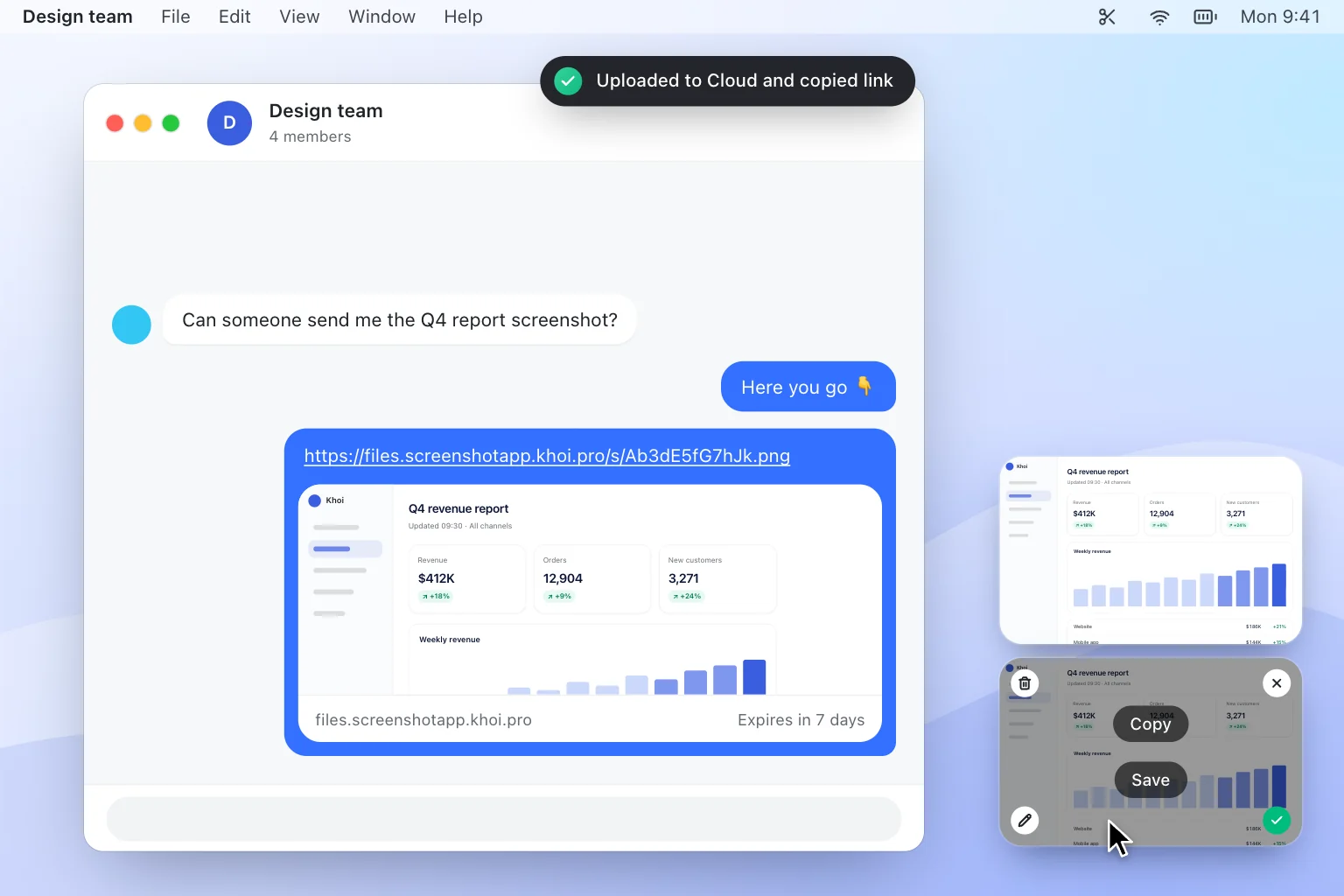
Press ⌘⇧U to upload whatever's on your clipboard straight to a link, or click Cloud after a capture — Screenshot K saves a local copy first, so a failed upload never loses your file.
Highlights
Why this feature
One shortcut from the clipboard
⌘⇧U uploads whatever image is on your clipboard directly — no capture or Screen Recording permission needed for this one.
Free Khoi Cloud, no account
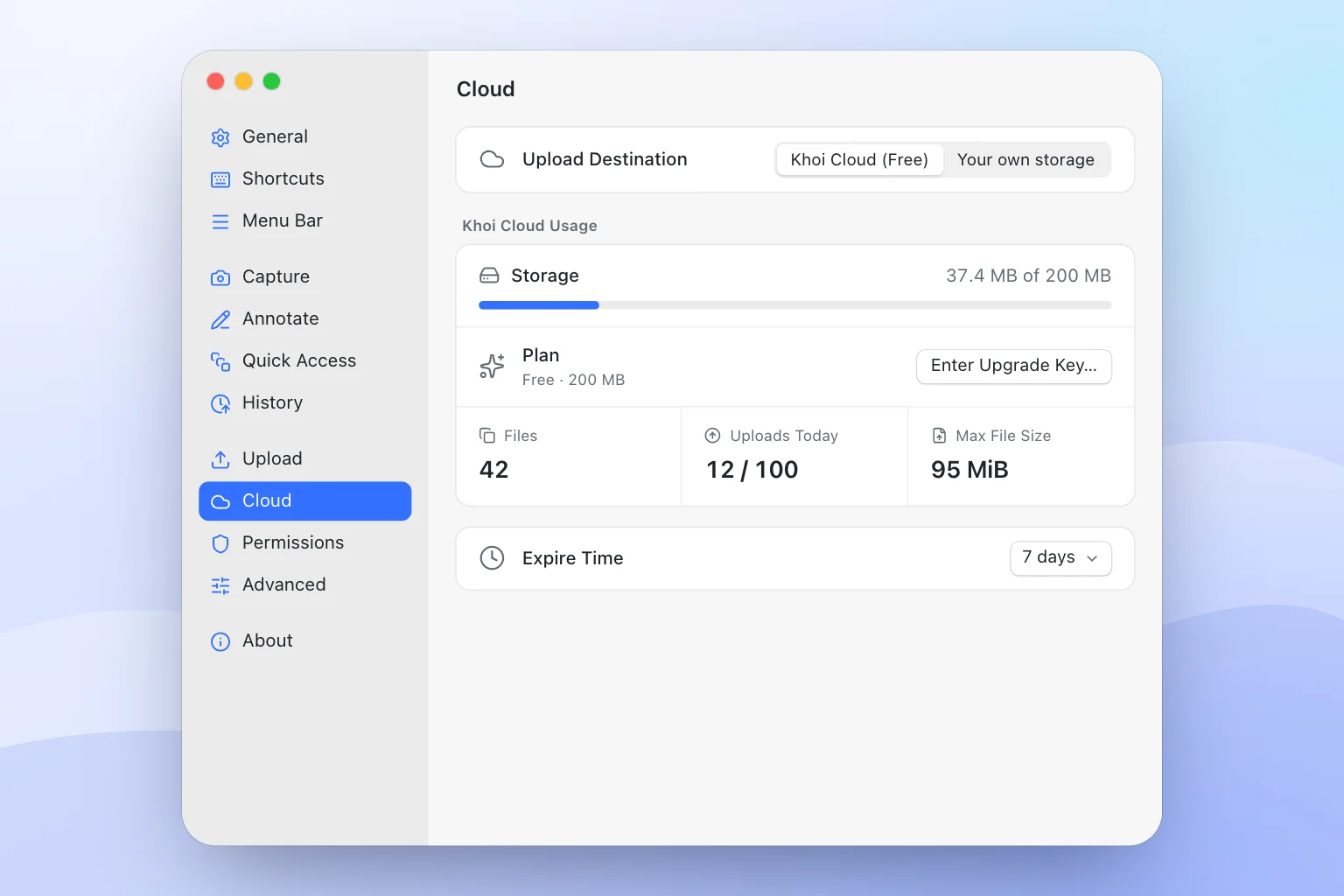
Up to 95 MiB per file, 200 MB active storage per device (more with an upgrade key), and 100 uploads a day, with no sign-up.
Links expire automatically
Choose 1, 3, 7 (the default), 14, or 30 days — after that, the link stops working.
Bring your own storage
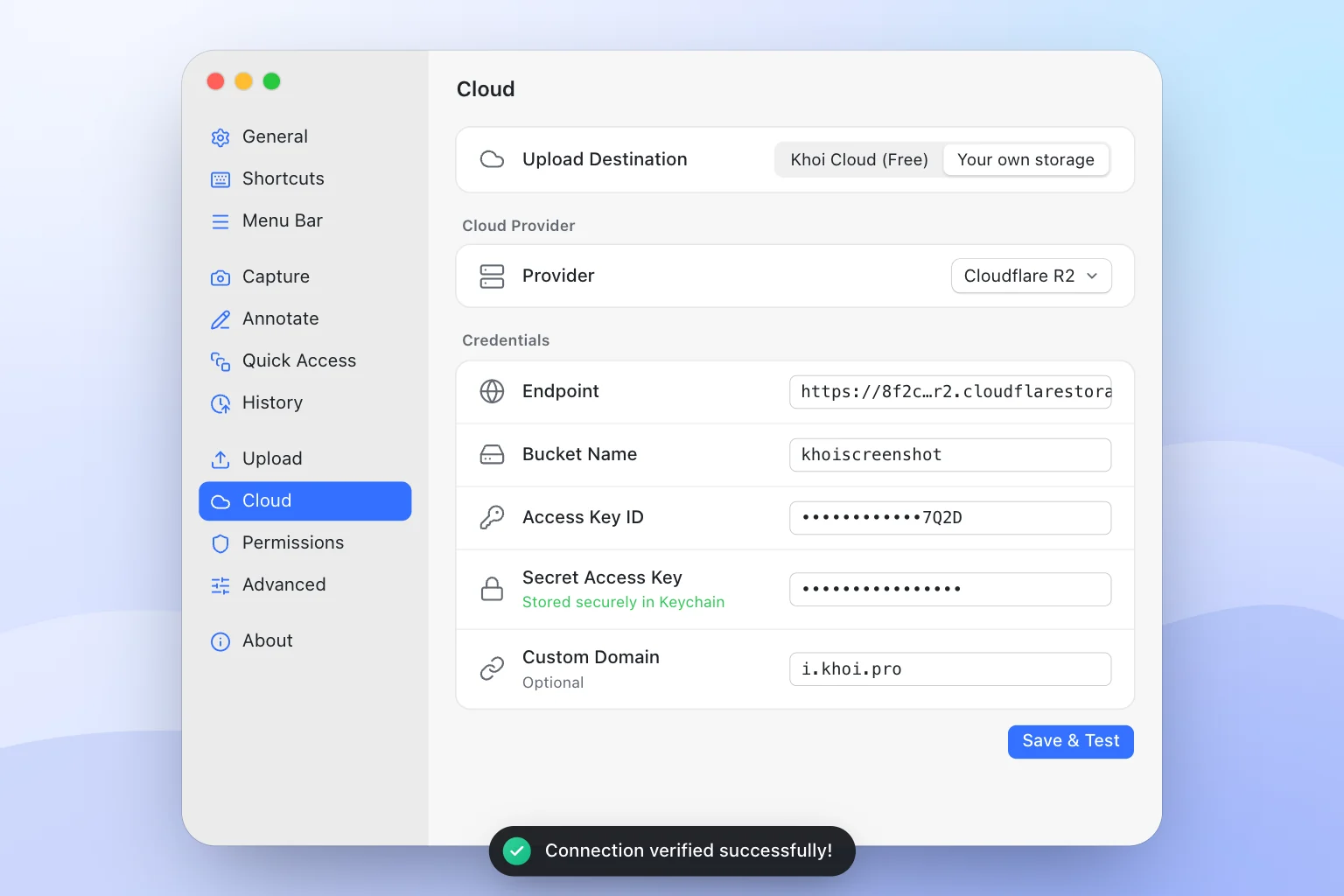
Point uploads at your own AWS S3, Cloudflare R2, or Google Drive instead — access keys stay in your Keychain.
Failed uploads stay retryable
A capture always saves locally first, so if an upload fails you can retry it later from History.
How it works
Steps to do it
- 01
Press ⌘⇧U, or click Cloud
⌘⇧U uploads your clipboard image directly; the Cloud button works from the capture overlay or Scrollshot.
- 02
It saves locally first
The file lands in History before the upload starts, so nothing is lost if the network drops.
- 03
It uploads
To Khoi Cloud by default, or your configured S3, R2, or Google Drive bucket.
- 04
The link is copied automatically
Paste it anywhere as soon as the upload finishes.
- 05
Set an expiry in Preferences
Pick 1, 3, 7, 14, or 30 days for how long Khoi Cloud links stay live.
Details
Go deeper
Khoi Cloud limits
The free default storage accepts files up to 95 MiB, with a 200 MB active quota per device and a cap of 100 uploads a day. An upgrade key raises the quota for a set period; when it ends, the oldest files above 200 MB are deleted after a 3-day grace period. Accepted types cover PNG, JPEG, GIF, WebP, TIFF, BMP, and HEIC images, plus MP4 and QuickTime video.
Bring your own storage
Point Screenshot K at your own AWS S3, Cloudflare R2, or Google Drive bucket instead of Khoi Cloud — useful once you outgrow the free limits, or if you'd rather keep files on infrastructure you control. Access keys are stored in the macOS Keychain, not in config.toml.
The Upload tab
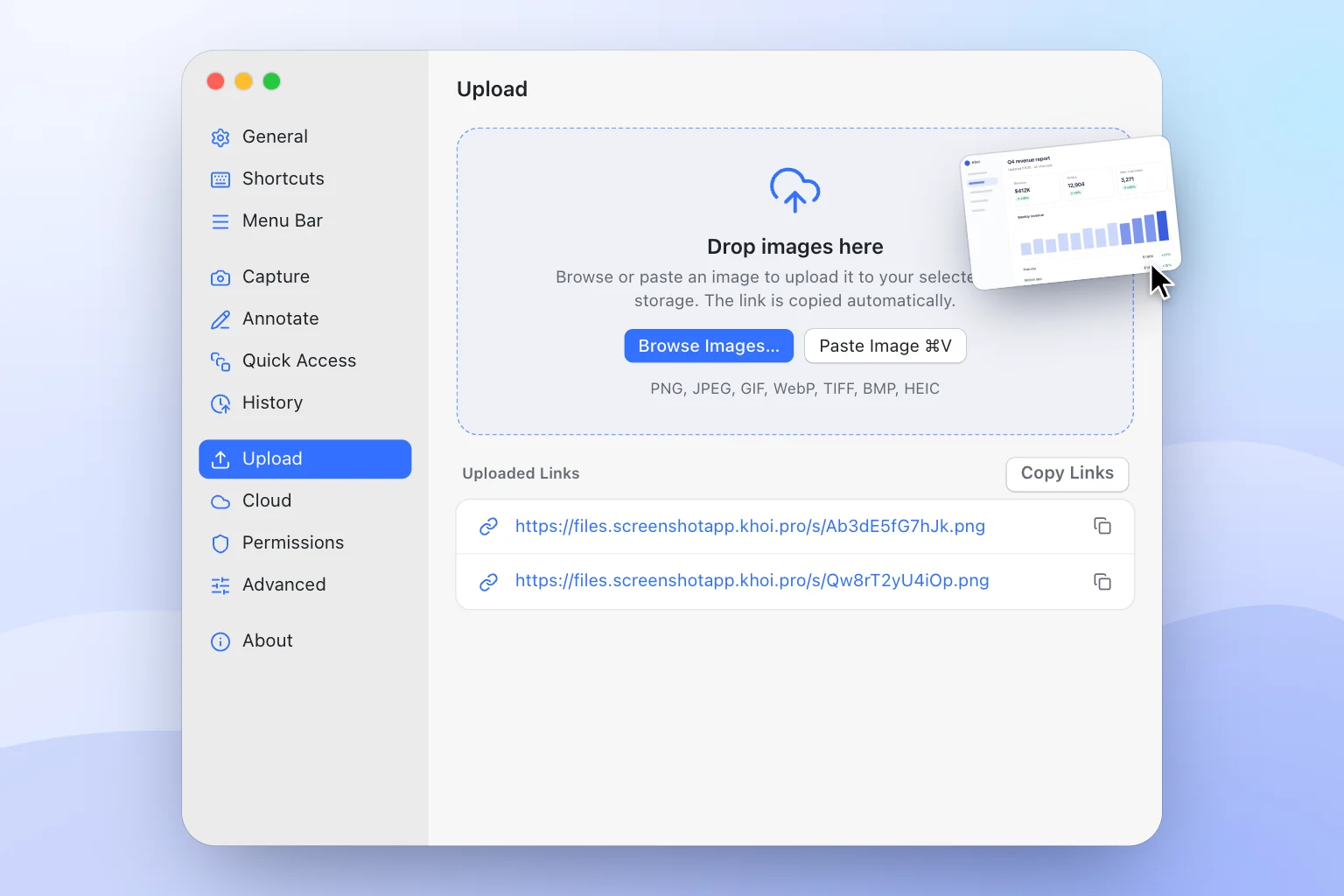
Drag a file in, use Browse Images, or paste an image with ⌘V — the Upload tab works independently of capturing, so you can share an image you didn't take with Screenshot K.
Specs
Limits, formats and requirements
- Max file size (Khoi Cloud)
- 95 MiB
- Active quota per device
- 200 MB (more with an upgrade key)
- Uploads per day
- 100
- Link expiry options
- 1, 3, 7 (default), 14, or 30 days
- Accepted image types
- PNG, JPEG, GIF, WebP, TIFF, BMP, HEIC
- Accepted video types
- MP4, QuickTime (MOV)
- Own storage
- AWS S3, Cloudflare R2, Google Drive
- Default shortcut
- ⌘⇧U (no capture permission needed)
FAQ
Frequently asked questions
Related
Related features
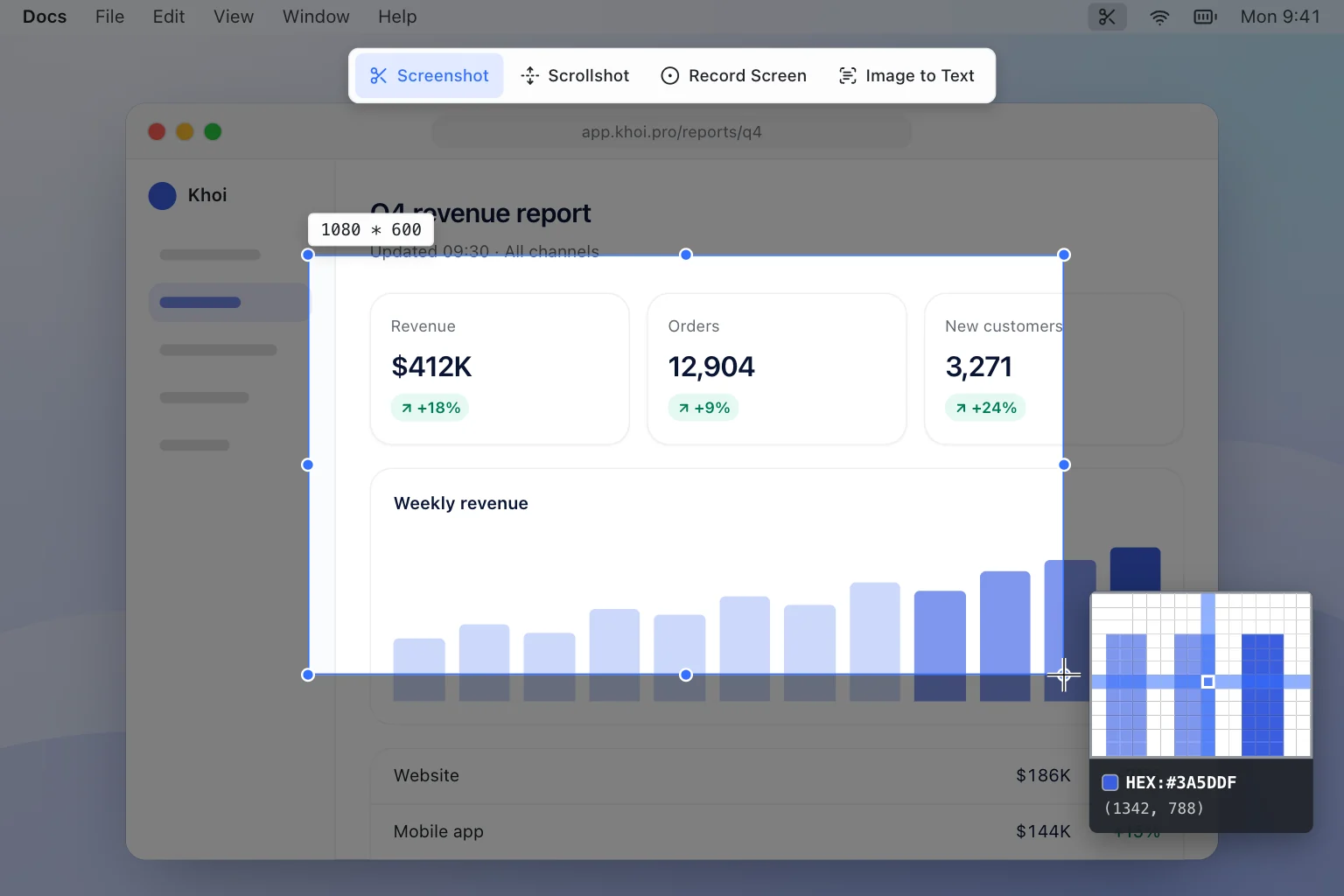
Screenshot
Area, window or UI element, all from ⌘⇧A
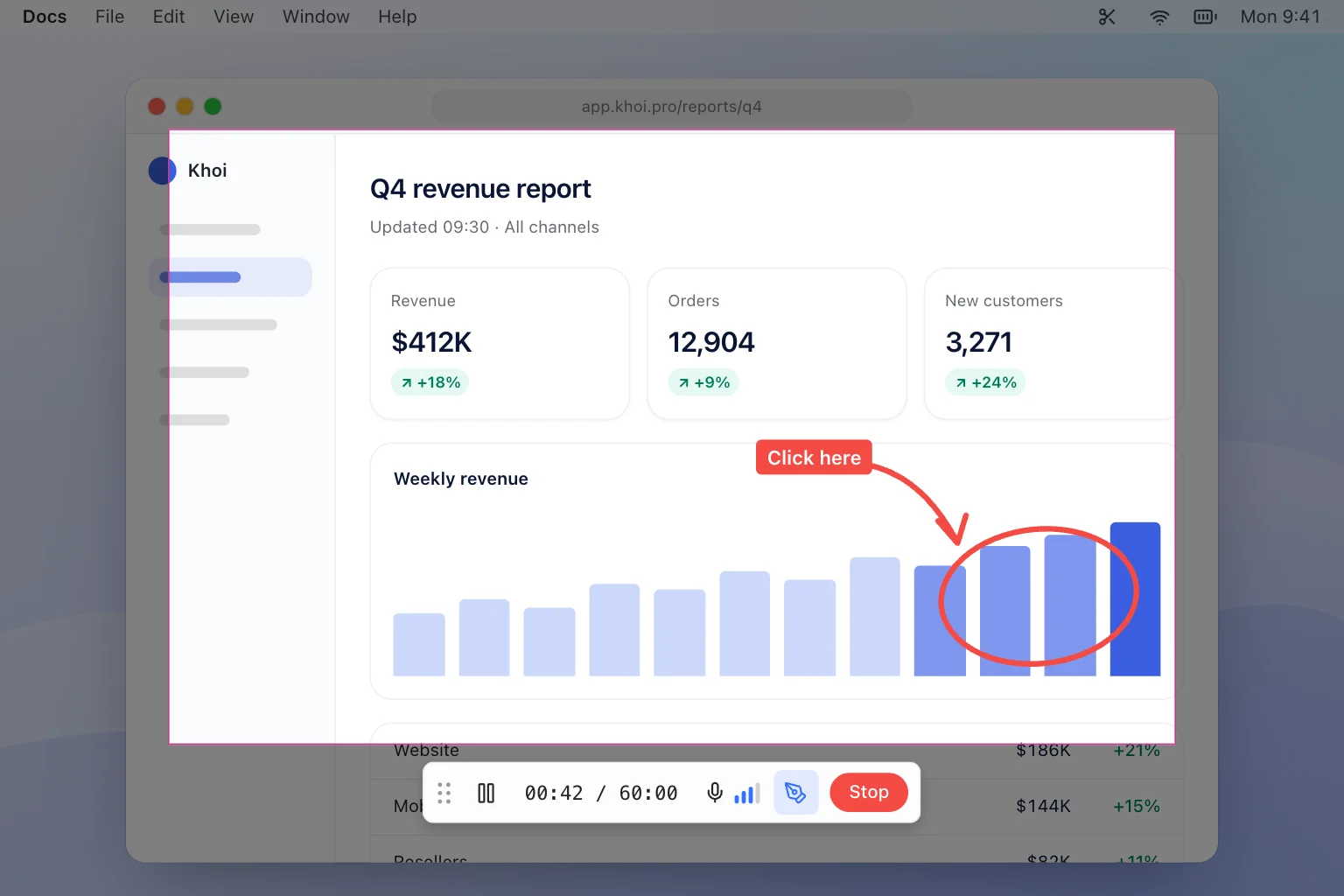
Screen recorder
MP4 or GIF with system audio, mic and camera
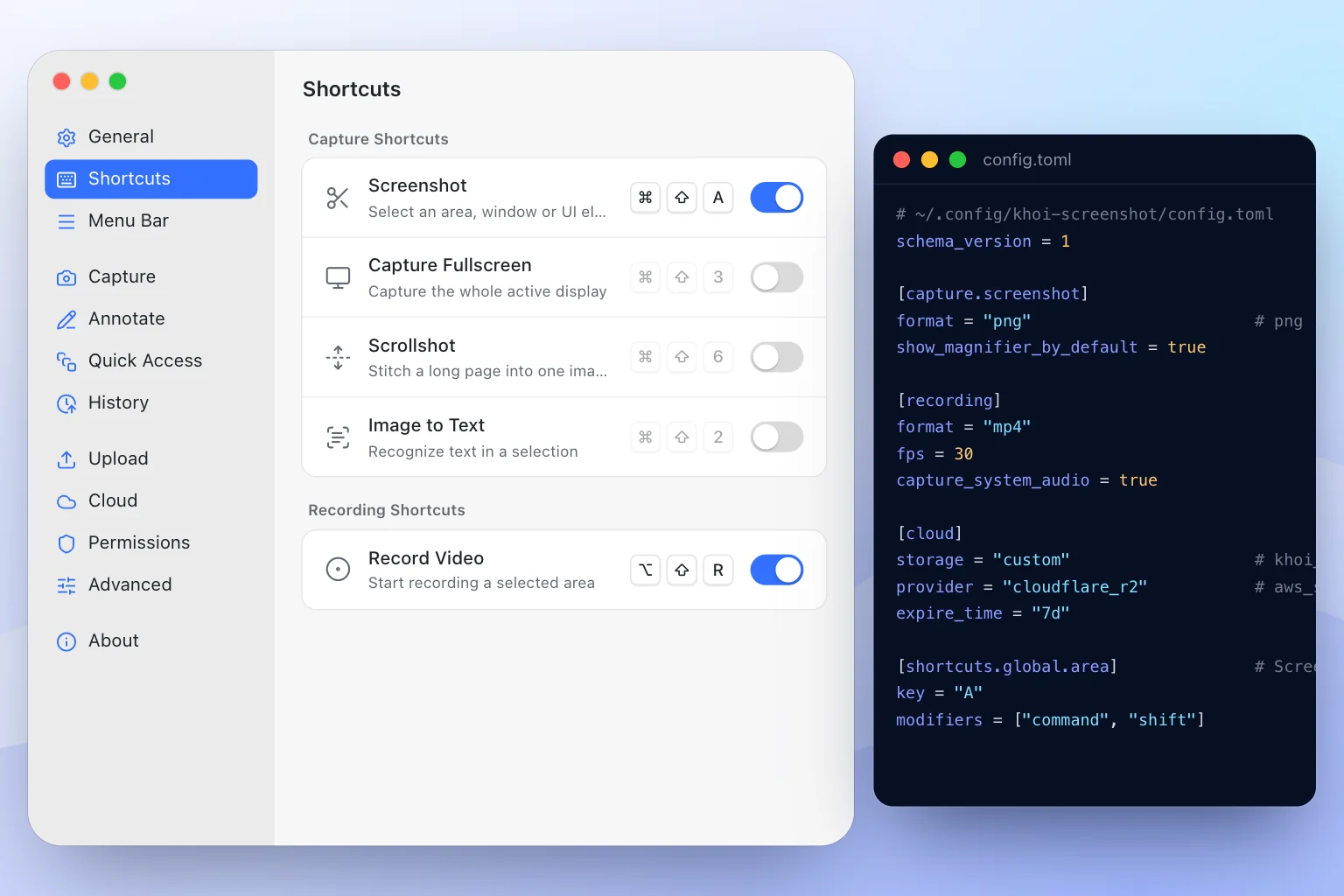
For power users
config.toml, deep links and shortcuts you control
Read more
Related posts

How to Screenshot on Mac: Every Method, Shortcut, and Format
The complete guide to taking a screenshot on Mac: every keyboard shortcut, the Screenshot app, clipboard vs. file, Markup, and when to use a dedicated app.

Mac Screenshot Shortcuts: The Complete Cheat Sheet
Every built-in Mac screenshot and screen recording shortcut, how to customize them in System Settings, and Screenshot K's defaults and in-overlay keys.

The Best CleanShot X Alternatives for Mac
CleanShot X is genuinely good, but not free. Here's what it does well, what it costs, and the best CleanShot X alternative for Mac for each use case.
Ready to try Screenshot K?
Install in a minute, no account needed. Runs on macOS 14+, Apple silicon.
Version 1.3.0 · 45.1 MB