For power users
One config file. Every setting, your way.
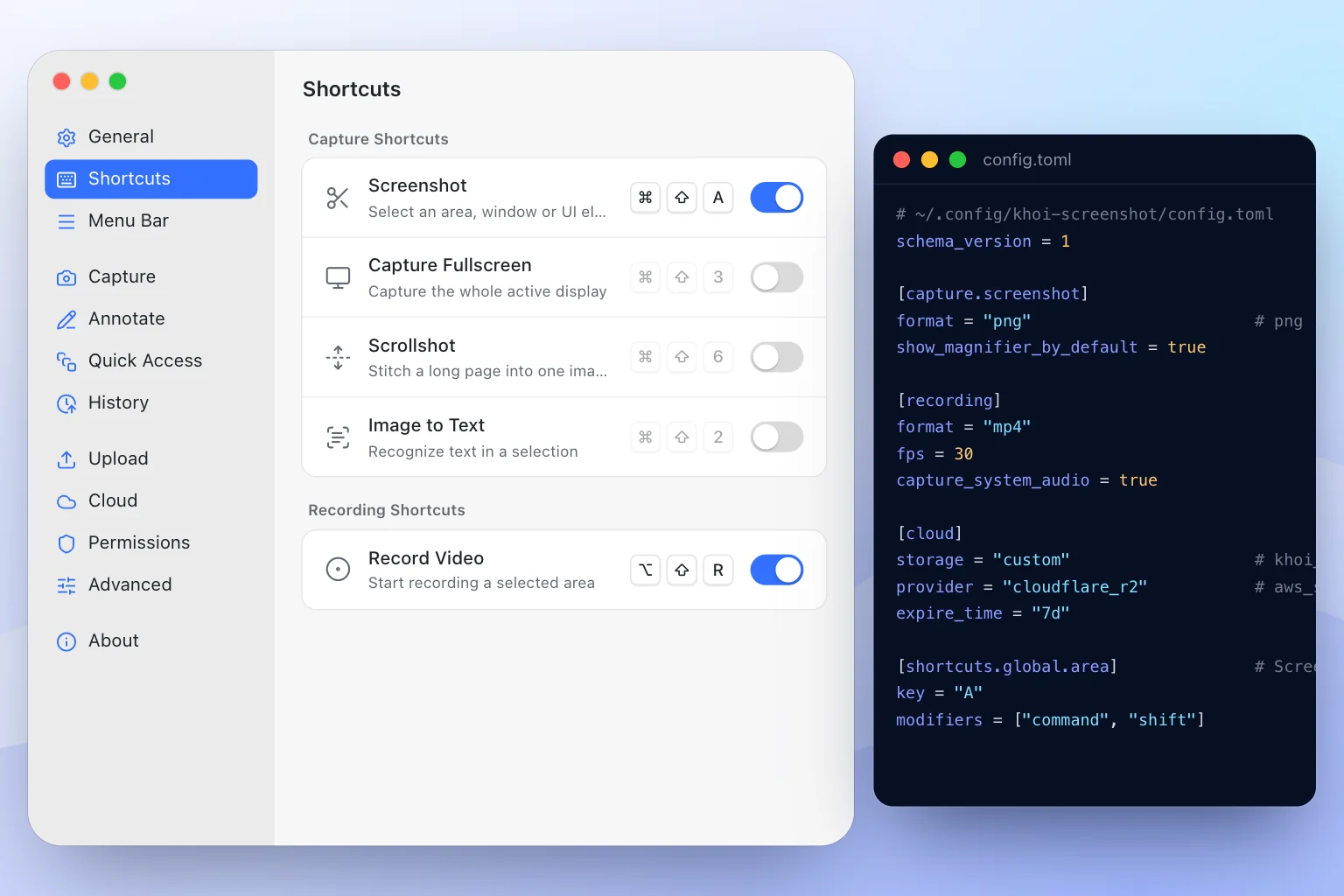
Every default lives in a single config.toml you can edit by hand, sync to your dotfiles, or copy to another Mac — plus khoiscreenshot:// deep links for Raycast, Alfred, and Shortcuts, and a shortcut picker where only ⌘⇧A, ⌥⇧R, and ⌘⇧U ship enabled.
Highlights
Why this feature
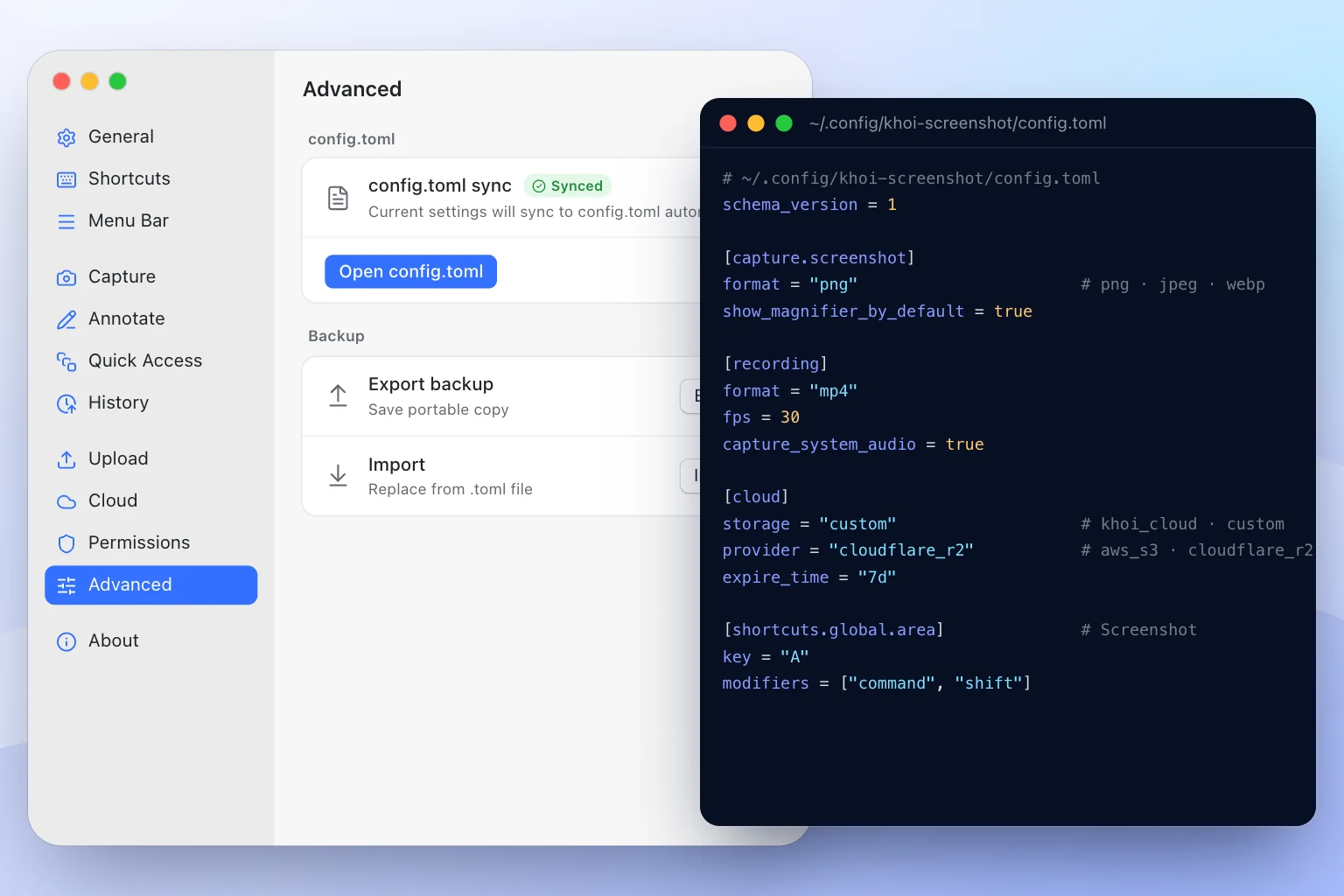
One config.toml file
Every setting — capture, recording, cloud, shortcuts — lives in ~/.config/khoi-screenshot/config.toml.
Keep it in your dotfiles
Version it, copy it to another Mac, or edit it by hand and relaunch to apply the changes.
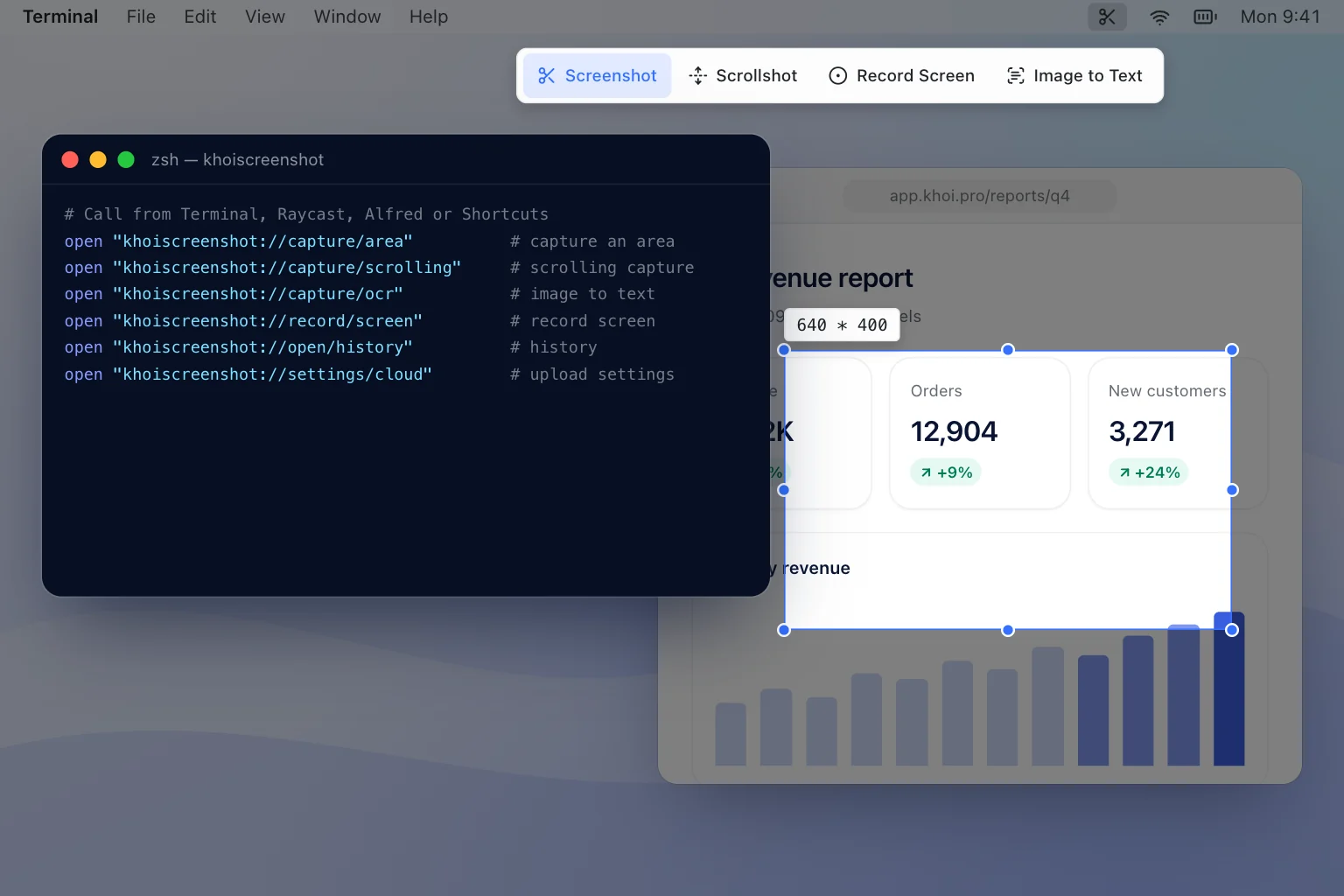
khoiscreenshot:// deep links
Trigger any capture, recording, or settings action from Raycast, Alfred, or Apple Shortcuts.
Rebind any shortcut
Only ⌘⇧A, ⌥⇧R, and ⌘⇧U ship enabled by default; every other action is yours to bind in Preferences → Shortcuts.
Live sync, both ways
App changes write to config.toml automatically; external edits to the file are detected and reviewable in the app.
How it works
Steps to do it
- 01
Open config.toml
Find it at ~/.config/khoi-screenshot/config.toml in your usual editor.
- 02
Edit the sections you want
Capture, recording, cloud, history, shortcuts, and more, each in its own [section].
- 03
Save the file
Screenshot K picks up the change automatically, or click Sync Now in Preferences → Advanced.
- 04
Set up deep links
Call khoiscreenshot:// actions from Raycast, Alfred, or Apple Shortcuts for the capture modes you use most.
- 05
Rebind shortcuts
Assign keys to any action in Preferences → Shortcuts — most ship unbound by design.
Details
Go deeper
Everything in one TOML file
Capture, recording, history, cloud, annotate defaults, and every shortcut binding live in sections like [capture.screenshot], [recording], [cloud], and [shortcuts.global.<kind>] — one file, readable and editable by hand.
khoiscreenshot:// deep links
Every action has a primary path and aliases — capture/area, capture/scrolling, record/screen, open/cloud-uploads, open/history, settings/cloud, and more — so you can trigger Screenshot K from Raycast, Alfred, or Apple Shortcuts without touching the UI.
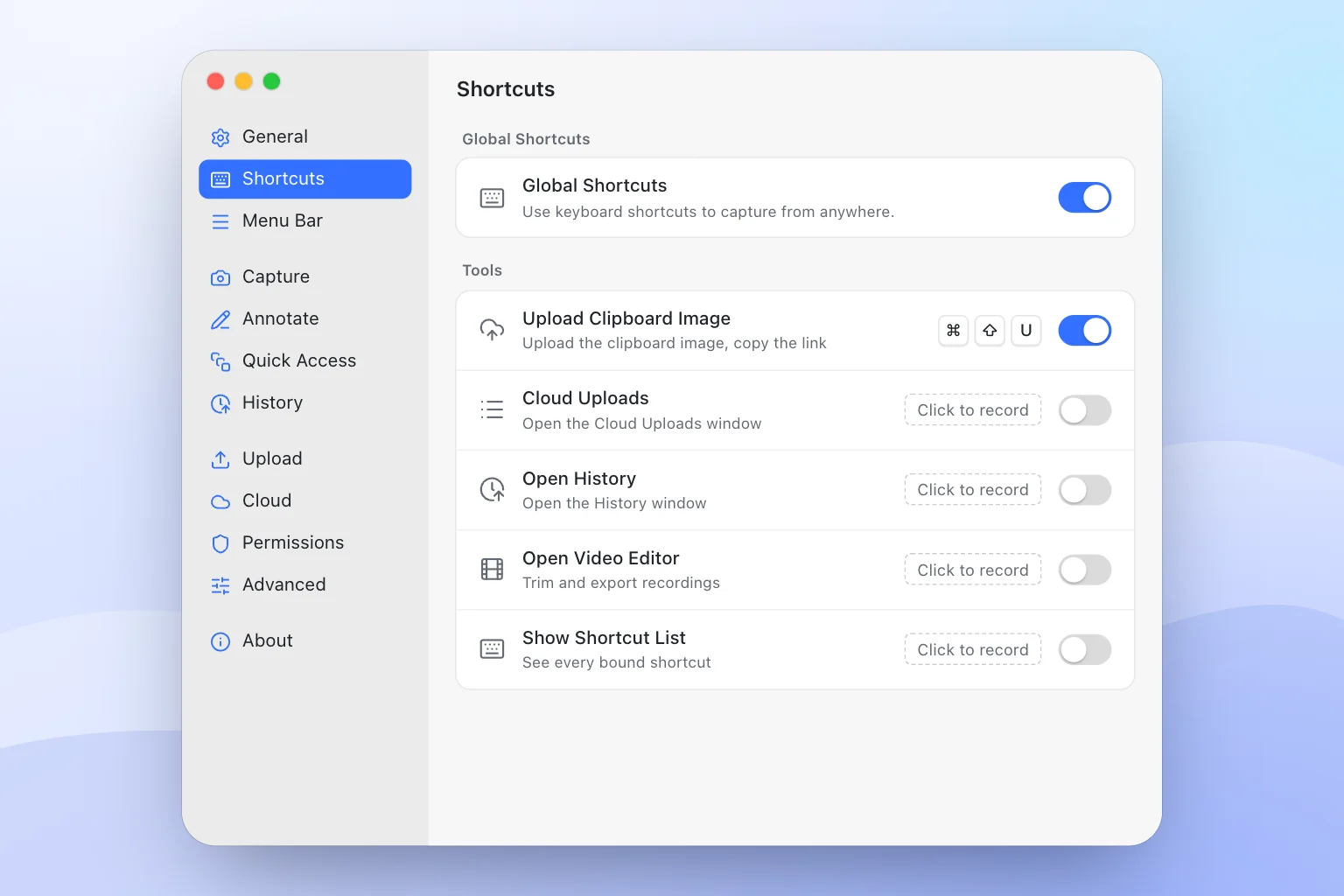
Only three shortcuts ship enabled
By design, ⌘⇧A (area capture), ⌥⇧R (record screen), and ⌘⇧U (upload clipboard to Cloud) are the only global shortcuts enabled out of the box. Fullscreen, active-window, repeat-area, video editor, cloud uploads, history, and every other action ship unbound so they never collide with shortcuts you already use — bind what you need in Preferences → Shortcuts.
Specs
Limits, formats and requirements
- Config path
- ~/.config/khoi-screenshot/config.toml
- Sync
- Automatic (debounced) plus manual Sync Now
- External edits
- Detected and reviewable in-app
- Deep link scheme
- khoiscreenshot://
- Default-enabled shortcuts
- ⌘⇧A, ⌥⇧R, ⌘⇧U (rest unbound)
- Requires
- macOS 14+, Apple silicon
FAQ
Frequently asked questions
Related
Related features
Screenshot
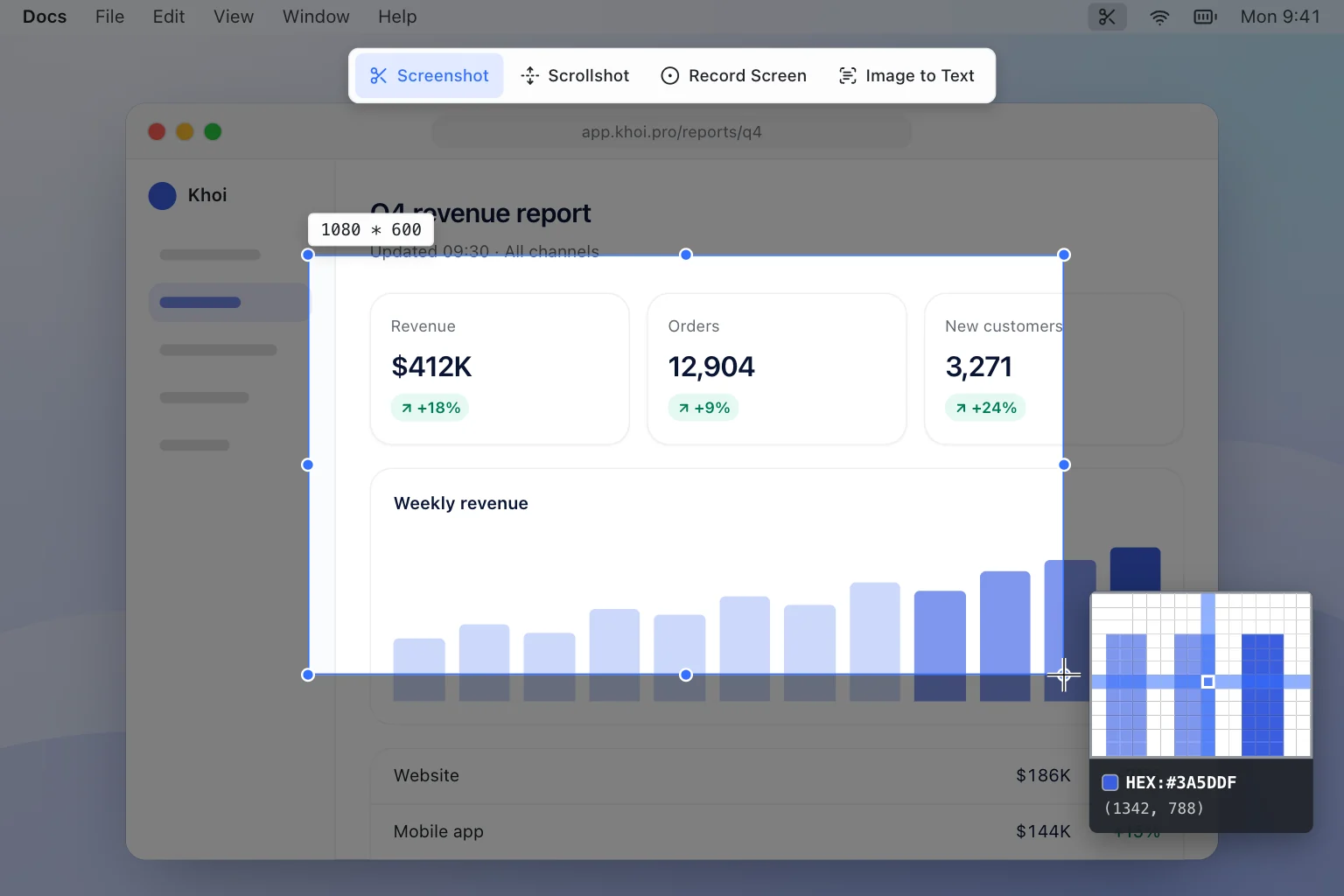
Area, window or UI element, all from ⌘⇧A
Cloud upload
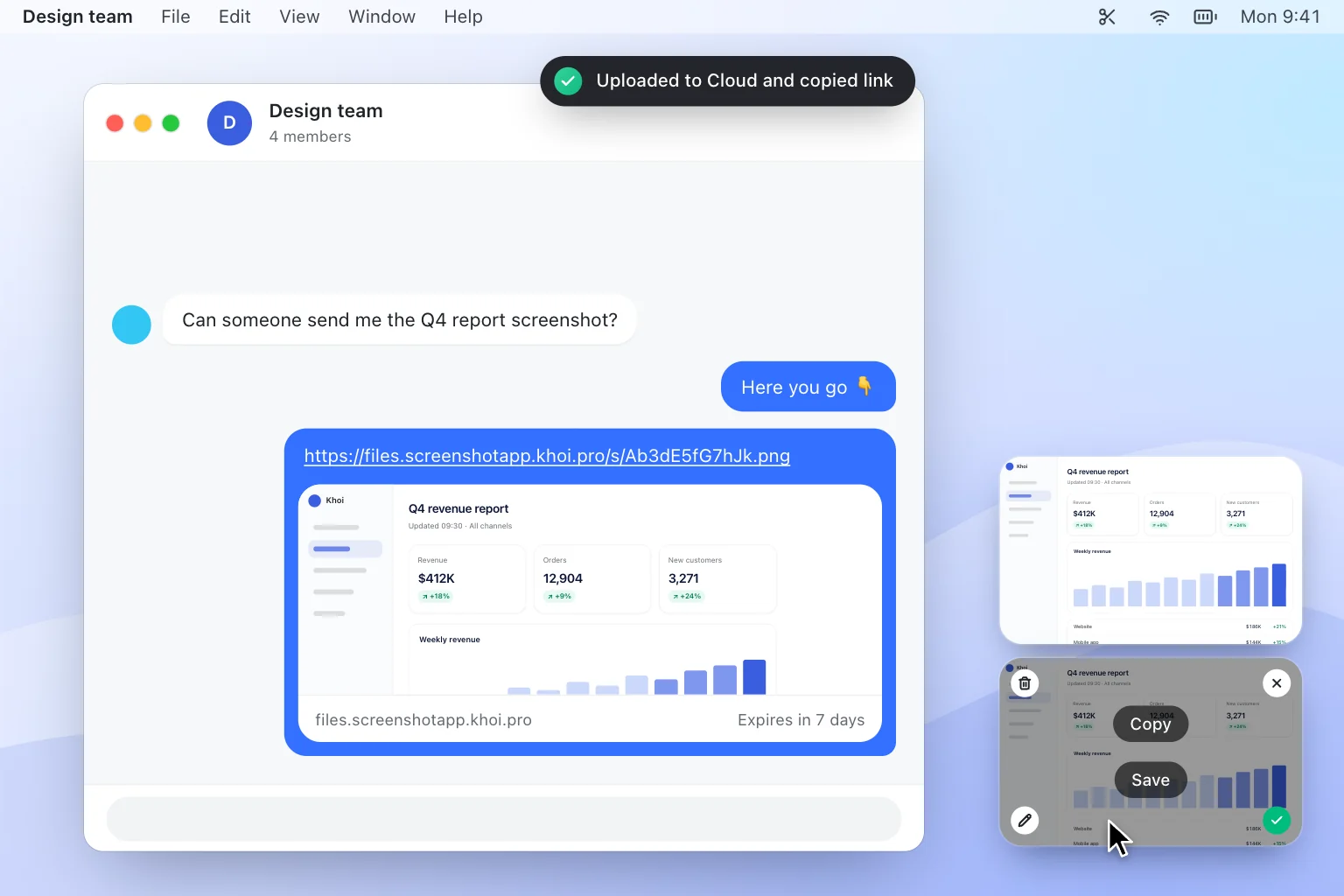
Upload and copy a link instantly, expires in 1–30 days
Screen recorder
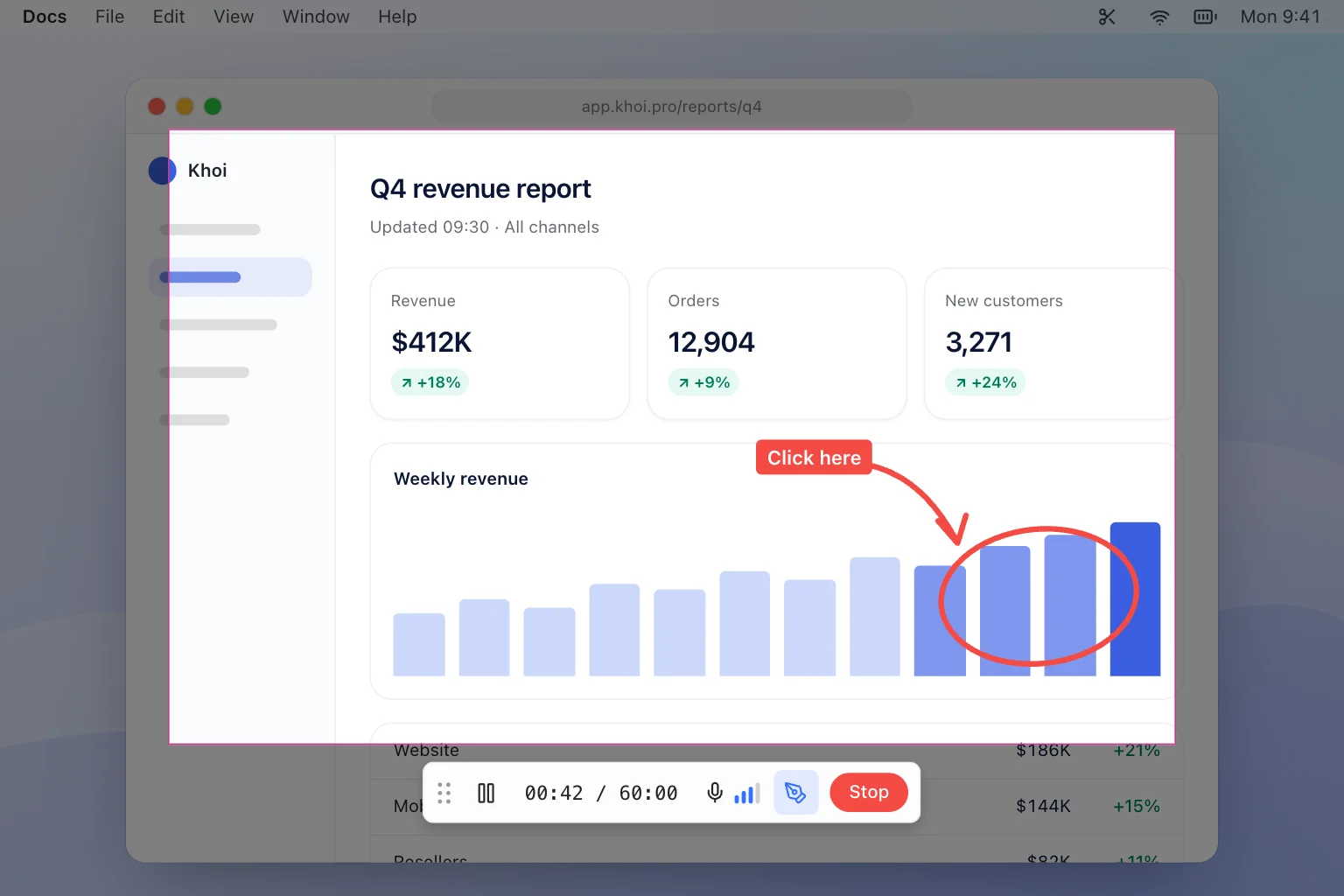
MP4 or GIF with system audio, mic and camera
Read more
Related posts
Mac Screenshot Shortcuts: The Complete Cheat Sheet
Every built-in Mac screenshot and screen recording shortcut, how to customize them in System Settings, and Screenshot K's defaults and in-overlay keys.
How to Screenshot on Mac: Every Method, Shortcut, and Format
The complete guide to taking a screenshot on Mac: every keyboard shortcut, the Screenshot app, clipboard vs. file, Markup, and when to use a dedicated app.

The Best Screenshot App for Mac in 2026
An honest, sourced comparison to find the best screenshot app for Mac: macOS's built-in tool and six apps, covering price, scrolling, recording, and OCR.
Ready to try Screenshot K?
Install in a minute, no account needed. Runs on macOS 14+, Apple silicon.
Version 1.3.0 · 45.1 MB