Translate
Translate the text in a screenshot, on-device
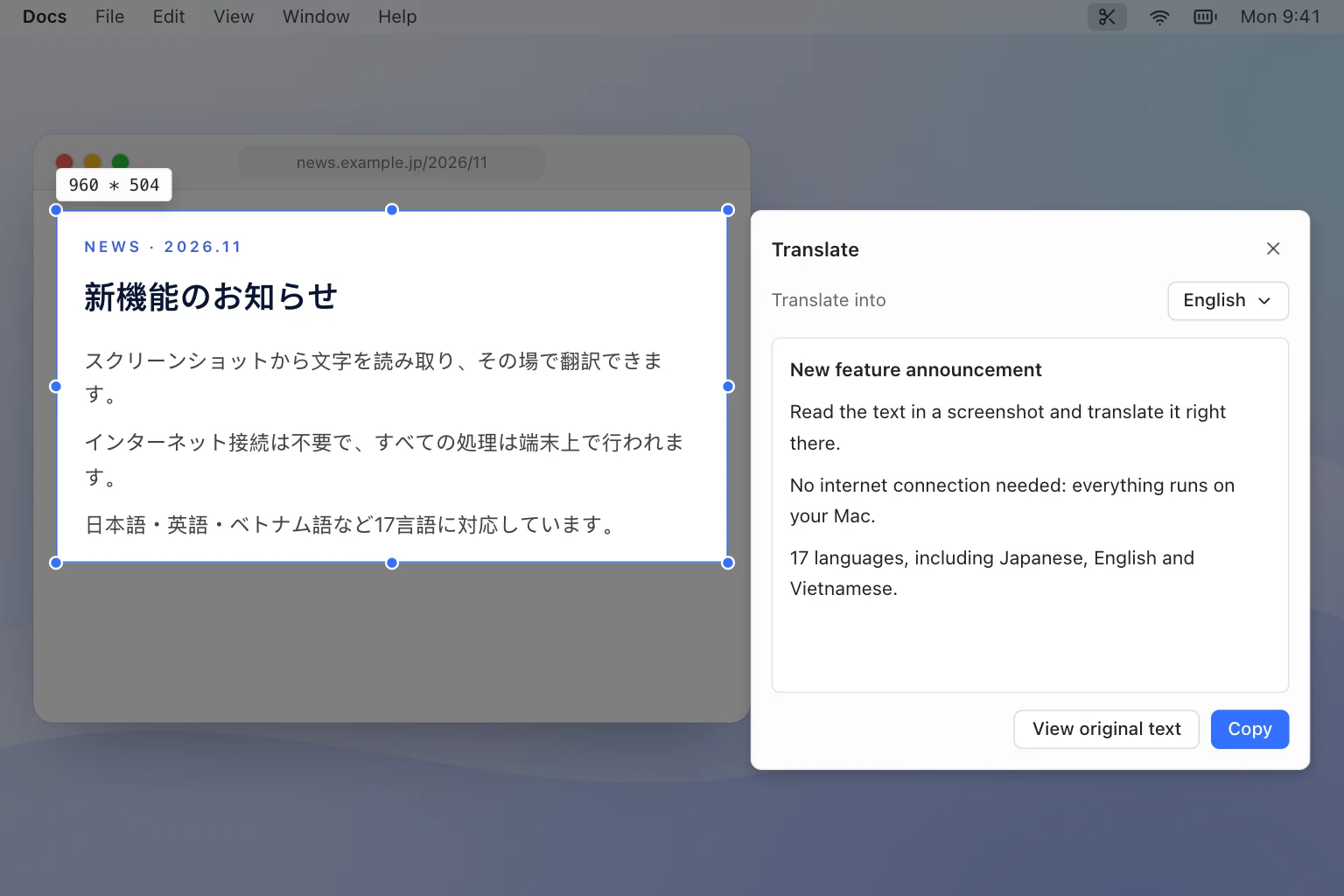
Pick a target language from the Translate panel and Screenshot K rewrites the text in your capture using Apple's on-device Translation framework — toggle View Original any time to compare.
Highlights
Why this feature
17 on-device languages
From Arabic to Vietnamese, Apple Translation handles the conversion locally.
View Original toggle
Flip back to the source text any time to double-check a translation.
Works on any capture
Translate text in a fresh screenshot or an image you already have open in Annotate.
No typing required
Select the area, pick a language, and the translated text appears — no copy-pasting into a separate app.
How it works
Steps to do it
- 01
Capture or open an image
Start from a fresh capture or open an existing image in Annotate.
- 02
Open Translate
Select it from the toolbar under your selection.
- 03
Choose “Translate into”
Pick your target language from the 17 supported by Apple Translation.
- 04
Read the translated text
It appears over the original, recognized and translated on-device.
- 05
Toggle View Original
Switch back and forth to compare the translation with the source text.
Details
Go deeper
Needs macOS 15, even though the app supports macOS 14
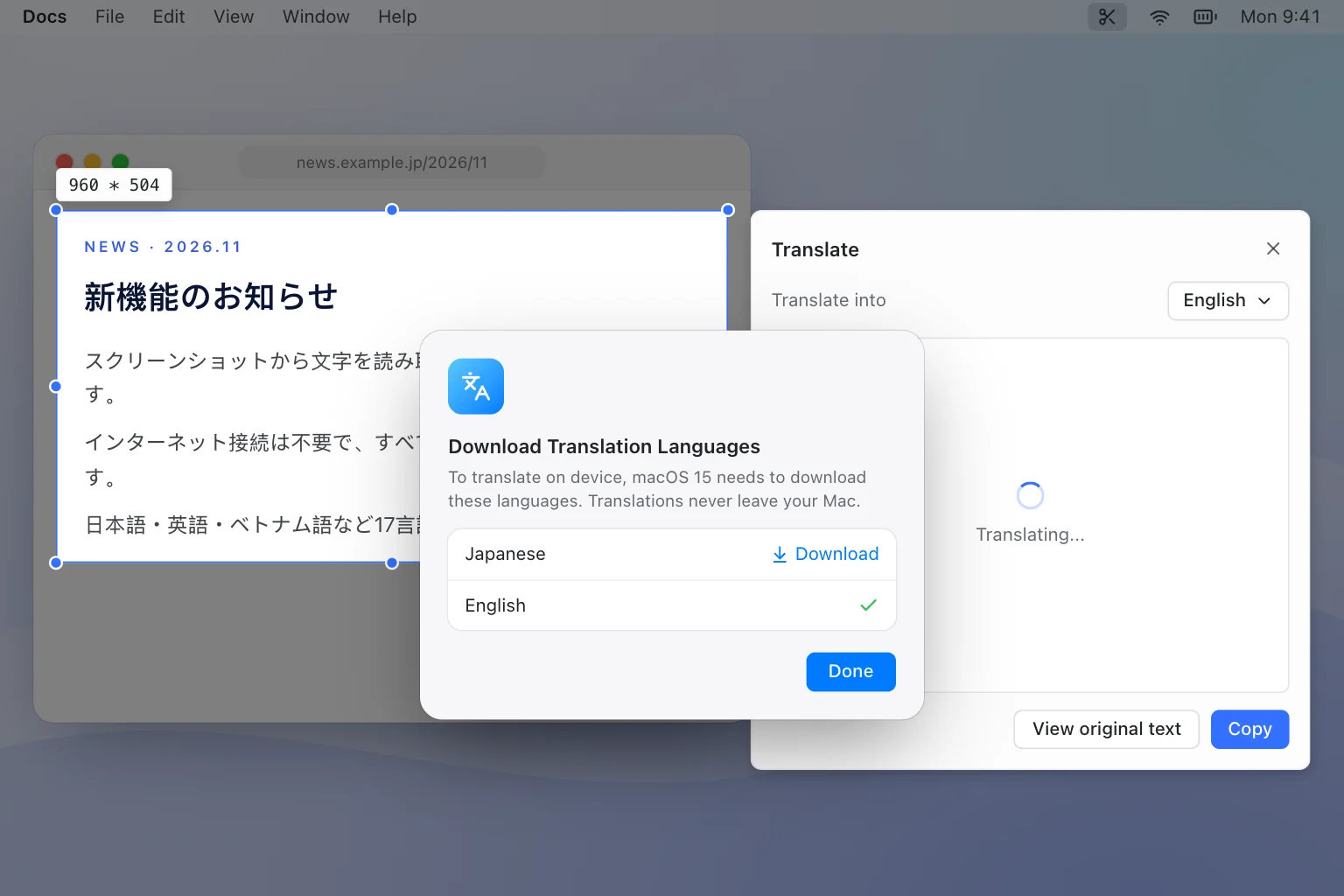
Screenshot K itself runs on macOS 14+, but Translate specifically requires macOS 15 or later because it depends on Apple's Translation framework, which isn't available on earlier versions. On macOS 14, the Translate option simply won't complete.
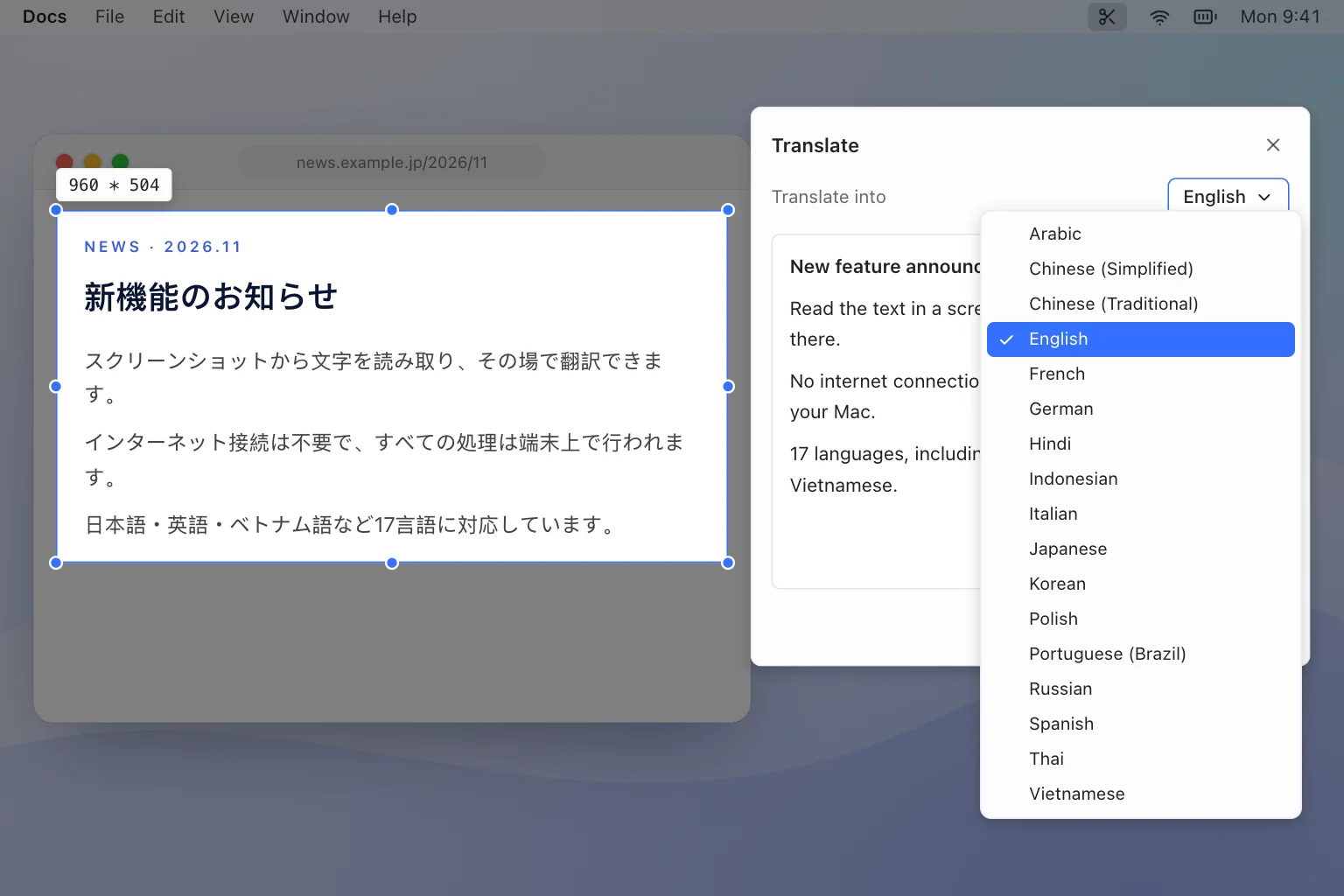
17 languages, on-device
Arabic, Chinese (Simplified), Chinese (Traditional), English, French, German, Hindi, Indonesian, Italian, Japanese, Korean, Polish, Portuguese (Brazil), Russian, Spanish, Thai, and Vietnamese. macOS may download a language pack the first time you use a given language.
Specs
Limits, formats and requirements
- Engine
- Apple Translation (on-device)
- Target languages
- 17
- Minimum macOS for Translate
- macOS 15
- Minimum macOS for the app
- macOS 14 (Translate needs 15)
- Requires
- Apple silicon
FAQ
Frequently asked questions
Related
Related features
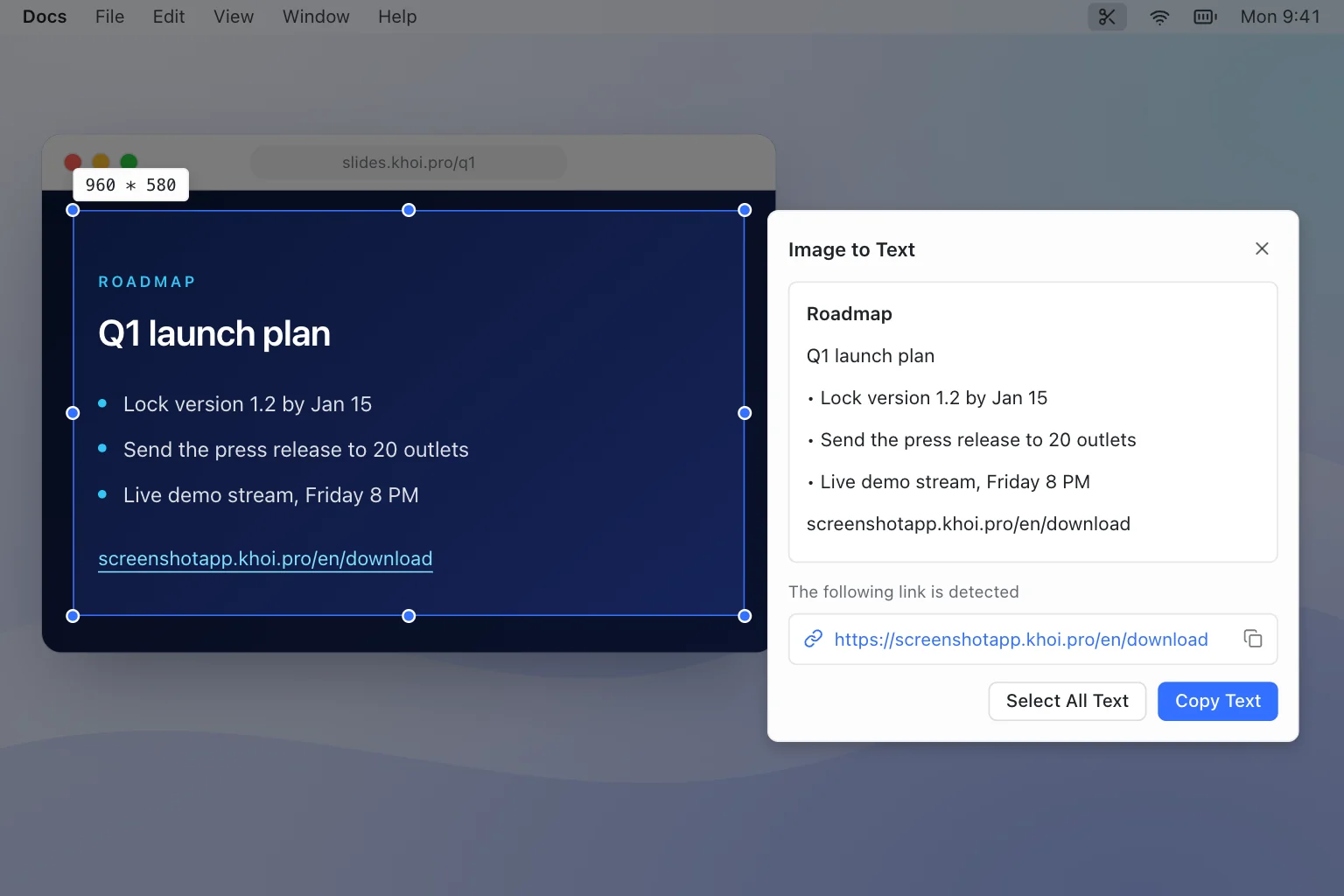
Image to text (OCR)
On-device text recognition, Vietnamese included
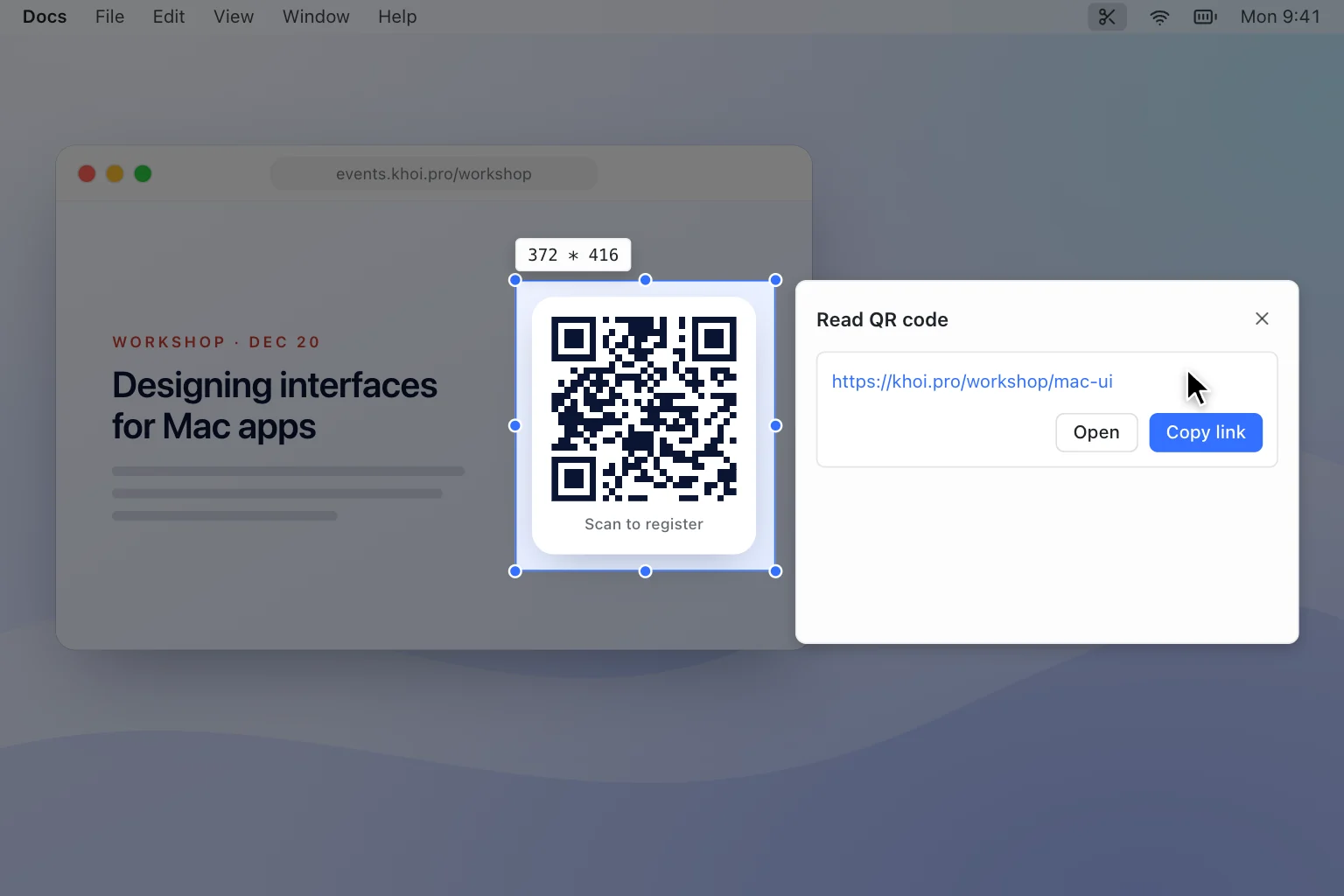
QR code scanner
Read any QR code on screen, no phone needed
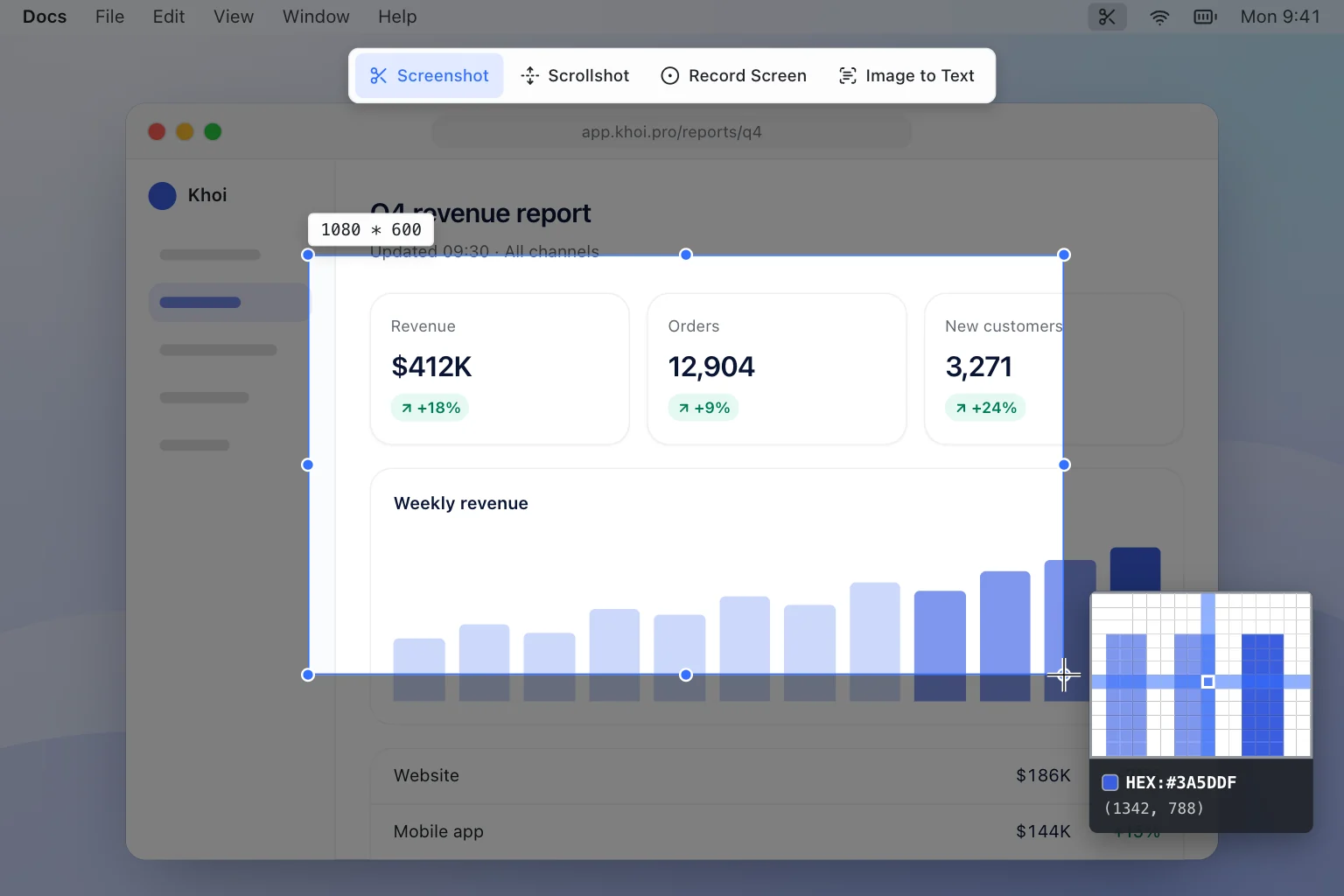
Screenshot
Area, window or UI element, all from ⌘⇧A
Read more
Related posts

How to Copy Text from an Image on a Mac
macOS has free, on-device OCR built in. Here's how to copy text from a photo using Live Text, and when a dedicated OCR app makes more sense.

How to Screenshot on Mac: Every Method, Shortcut, and Format
The complete guide to taking a screenshot on Mac: every keyboard shortcut, the Screenshot app, clipboard vs. file, Markup, and when to use a dedicated app.
Ready to try Screenshot K?
Install in a minute, no account needed. Runs on macOS 14+, Apple silicon.
Version 1.3.0 · 45.1 MB