Scrollshot
Turn a long page into one screenshot
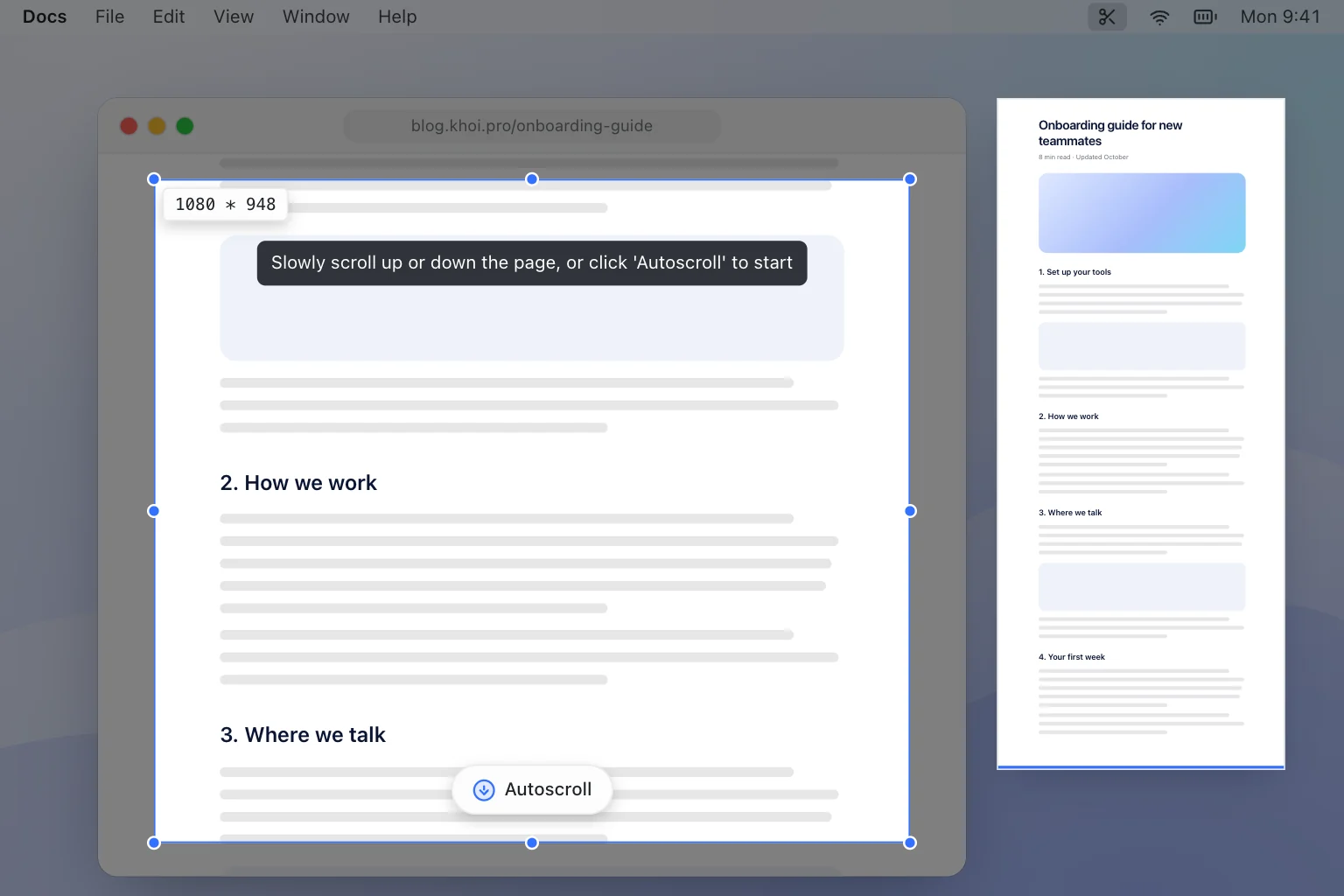
Start a Scrollshot, scroll through the page yourself or let Autoscroll do it, and watch Screenshot K stitch everything into a single image up to 32,768 pixels tall.
Highlights
Why this feature
Up to 32,768 px tall
Stitch an entire page, chat thread, or document into one image — far past what a single screen can show.
Manual or Autoscroll
Scroll the page yourself for full control, or turn on Autoscroll and let Screenshot K scroll and capture for you.
Live preview as you go
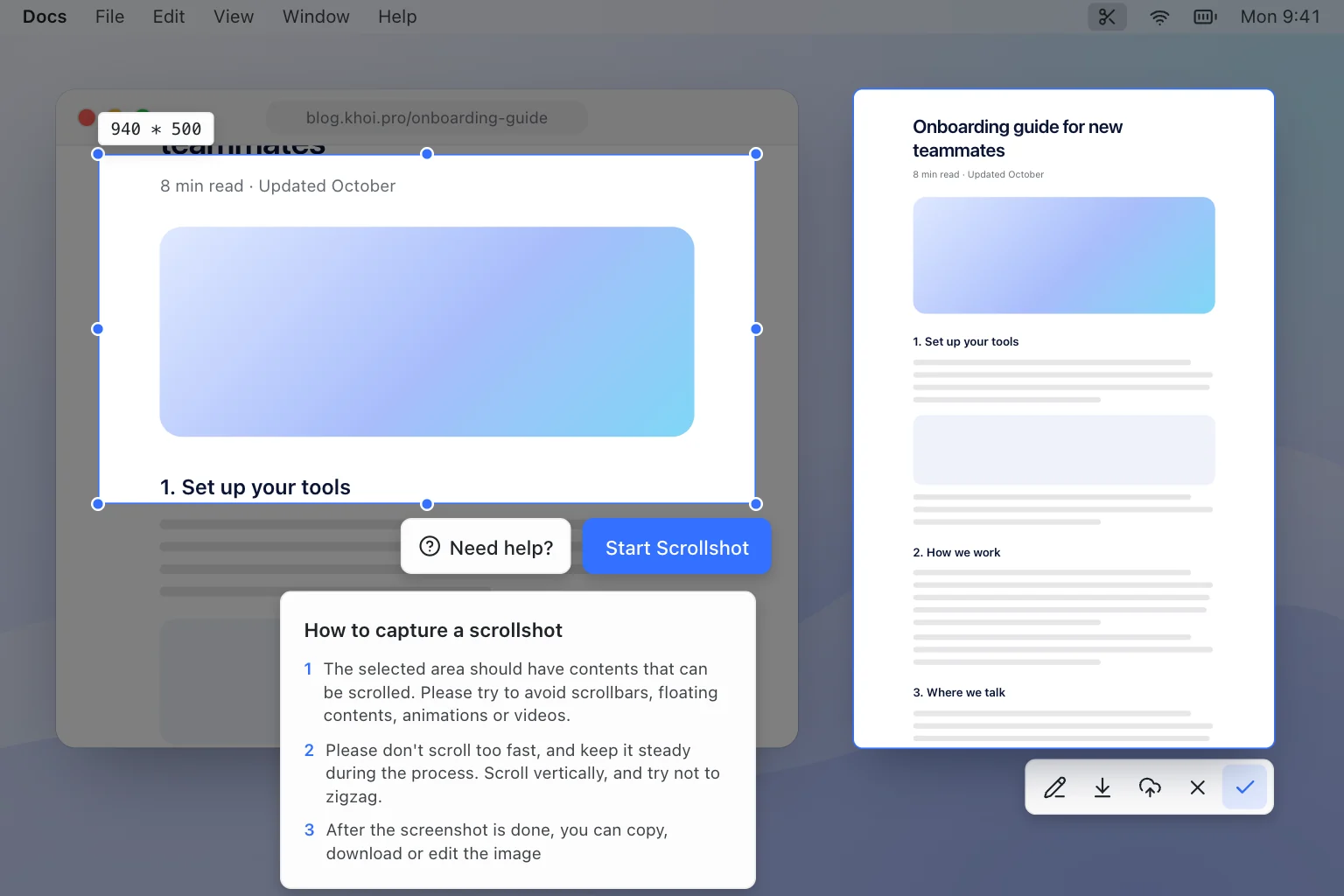
Watch the stitched image grow in a guided session — Start Scrollshot, keep scrolling, then Edit, Download, or finish with ✓.
Works in any scrollable window
Not limited to browser tabs — capture any app window that scrolls.
Edit before you save
Send the finished scrollshot straight to Annotate to blur, mark up, or add a watermark before exporting.
How it works
Steps to do it
- 01
Start Scrollshot
Launch it from the menu bar, Preferences → Shortcuts once you've assigned a key, or a khoiscreenshot:// deep link.
- 02
Select the window or area
Choose the scrollable region you want to capture.
- 03
Scroll, or turn on Autoscroll
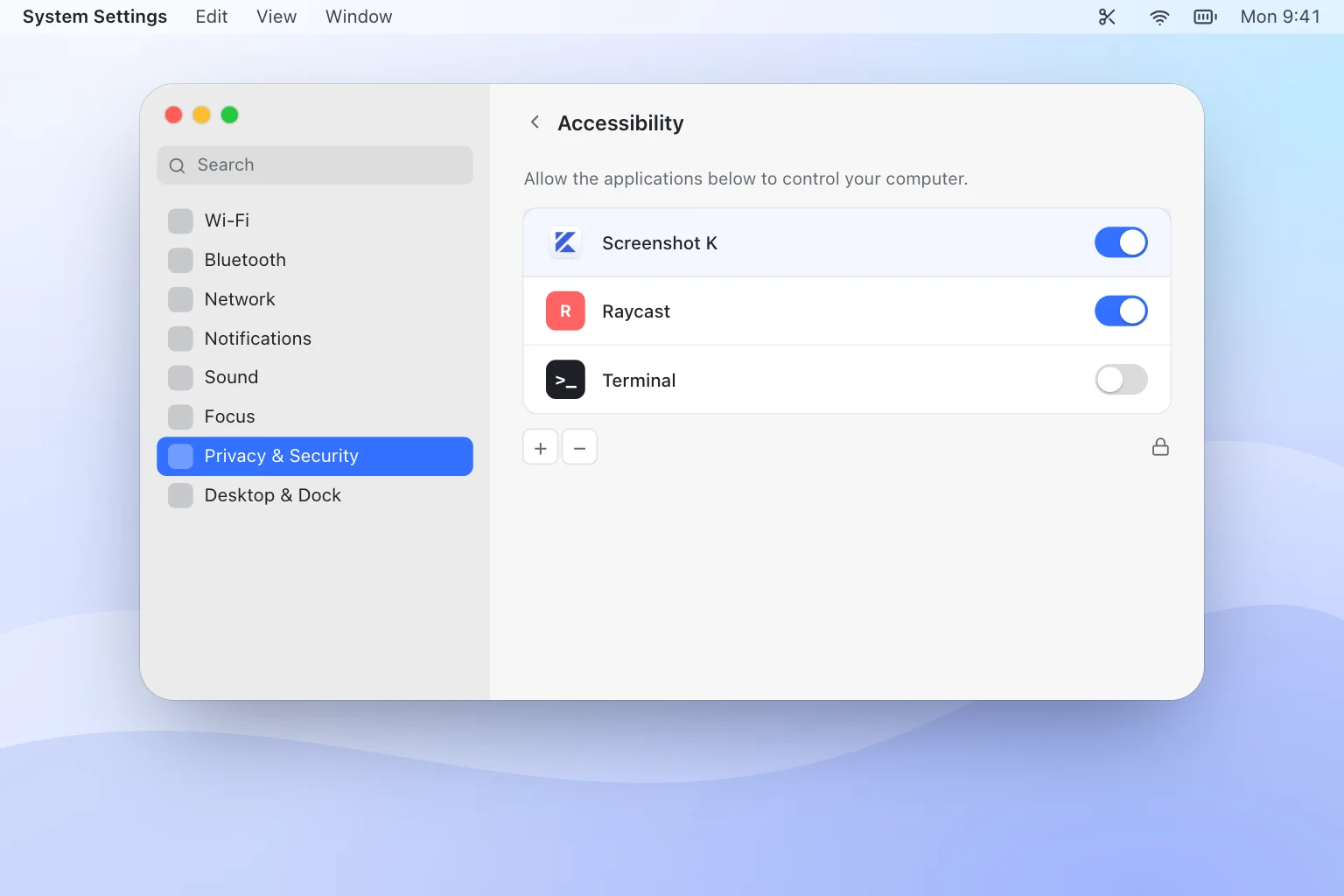
Scroll through the content yourself, or enable Autoscroll (needs Accessibility permission) to let it scroll for you.
- 04
Watch the preview grow
The stitched image updates live as you scroll, up to a maximum of 32,768 pixels tall.
- 05
Edit, Download, or finish
Send it to Annotate, download it as a file, or press ✓ to copy and close the session.
Details
Go deeper
A guided session, not a one-shot capture
Scrollshot runs as its own session with Start, Edit, Download, and Close controls, so you can keep scrolling as long as the page has more content — right up to the 32,768-pixel ceiling.
Autoscroll needs Accessibility
Letting Screenshot K scroll the page for you requires Accessibility permission, the same way active-window capture and UI-element detection do. If you'd rather not grant it, scroll manually — the result is identical.
Specs
Limits, formats and requirements
- Max output height
- 32,768 px
- Capture mode
- Manual scroll or Autoscroll
- Autoscroll requires
- Accessibility permission
- Export formats
- PNG, JPEG, WebP
- Requires
- macOS 14+, Apple silicon
FAQ
Frequently asked questions
Related
Related features
Screenshot
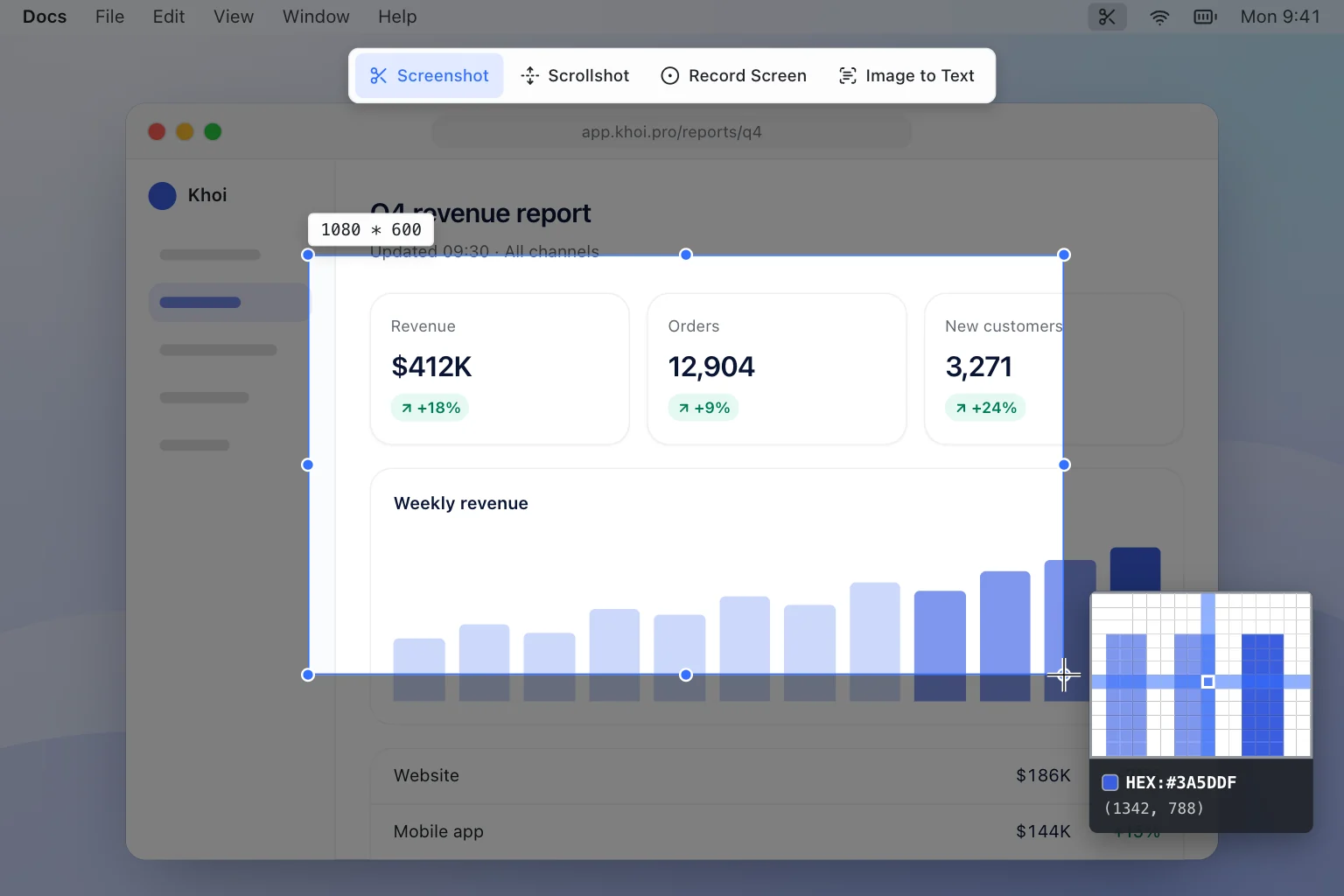
Area, window or UI element, all from ⌘⇧A
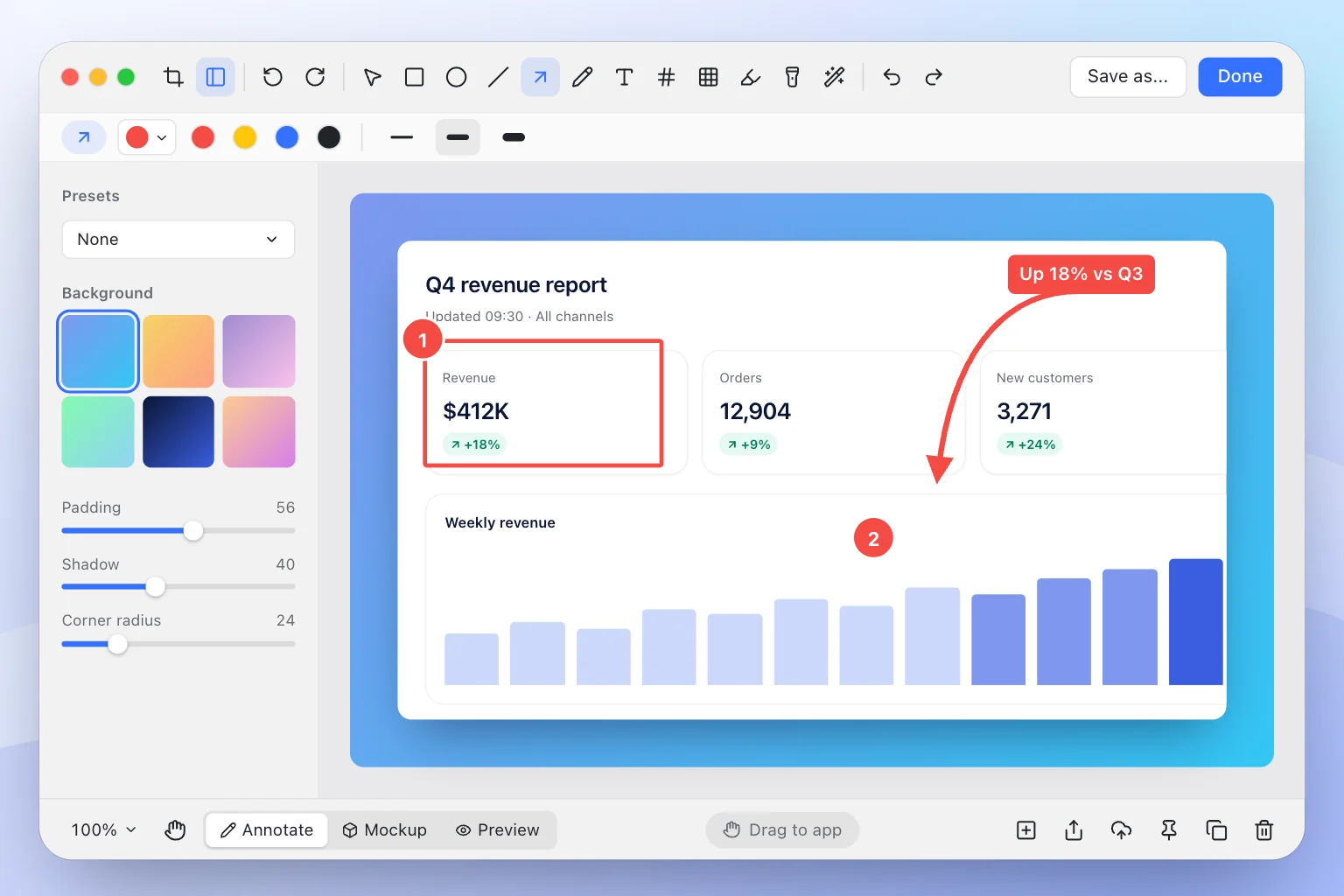
Annotate
Arrows, shapes, text and mosaic right under the selection
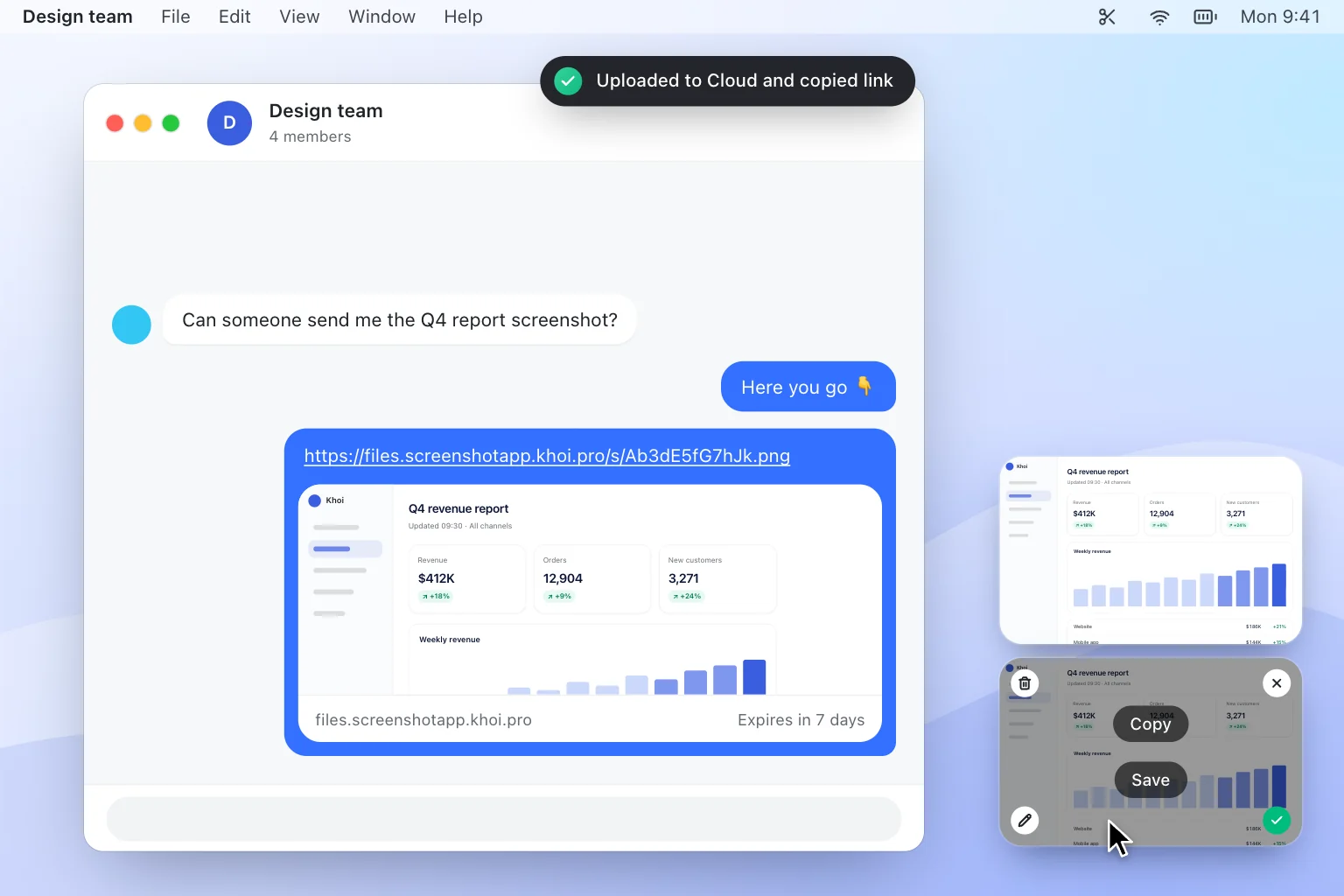
Cloud upload
Upload and copy a link instantly, expires in 1–30 days
Read more
Related posts

How to Take a Scrolling Screenshot on Mac
macOS has no built-in scrolling screenshot tool. Here's how to capture a full page in Safari, Chrome, and Firefox, plus scroll-capture any app, not a browser.
How to Screenshot on Mac: Every Method, Shortcut, and Format
The complete guide to taking a screenshot on Mac: every keyboard shortcut, the Screenshot app, clipboard vs. file, Markup, and when to use a dedicated app.
Mac Screenshot Shortcuts: The Complete Cheat Sheet
Every built-in Mac screenshot and screen recording shortcut, how to customize them in System Settings, and Screenshot K's defaults and in-overlay keys.
Ready to try Screenshot K?
Install in a minute, no account needed. Runs on macOS 14+, Apple silicon.
Version 1.3.0 · 45.1 MB