Screen recording · ⌥⇧R
Screen recording with audio, built in
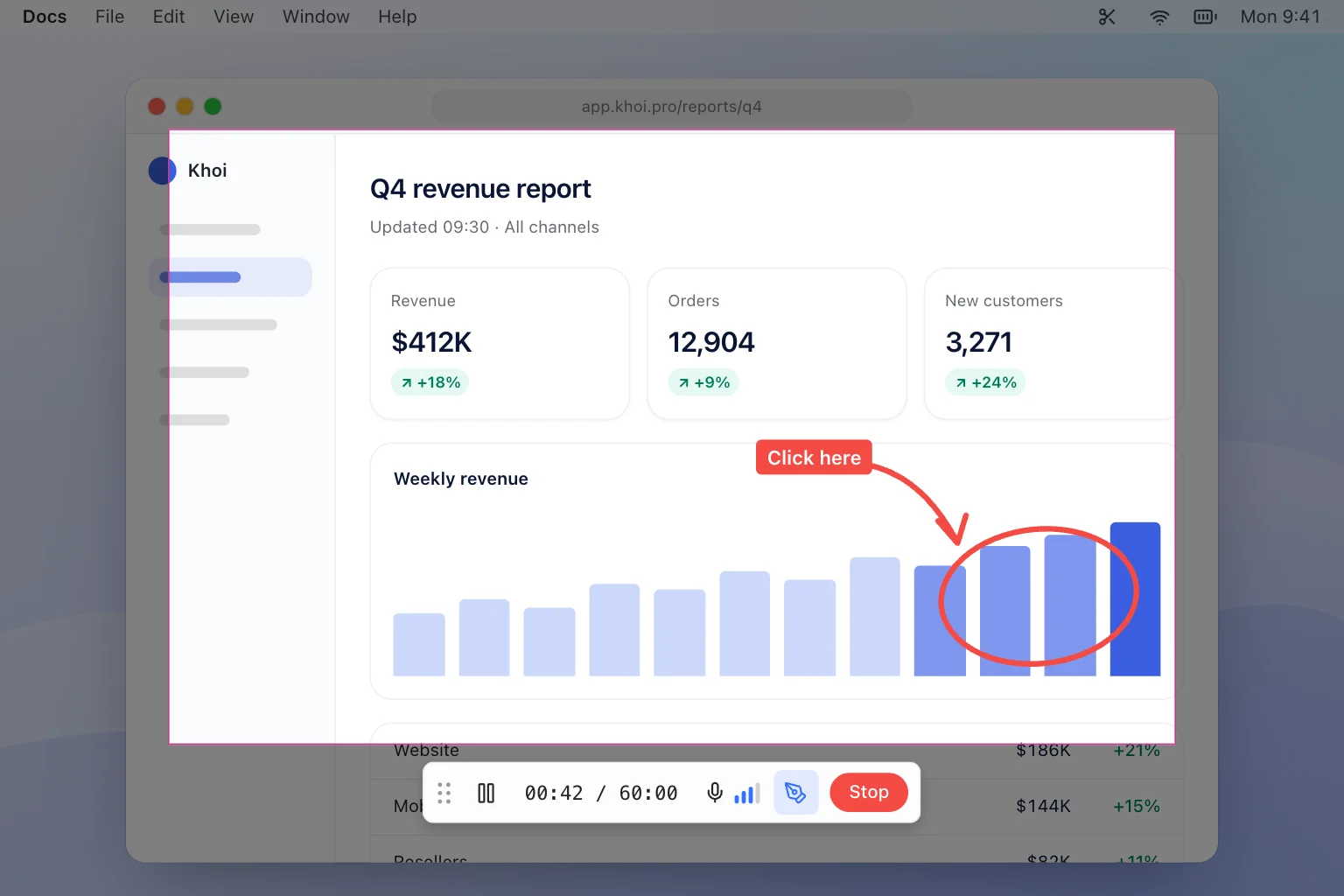
Record MP4, MOV, or GIF with system audio, an independent microphone, and a camera overlay — plus mouse highlight, keystroke overlay, and a 3-2-1 countdown before you start.
Highlights
Why this feature
System audio and microphone
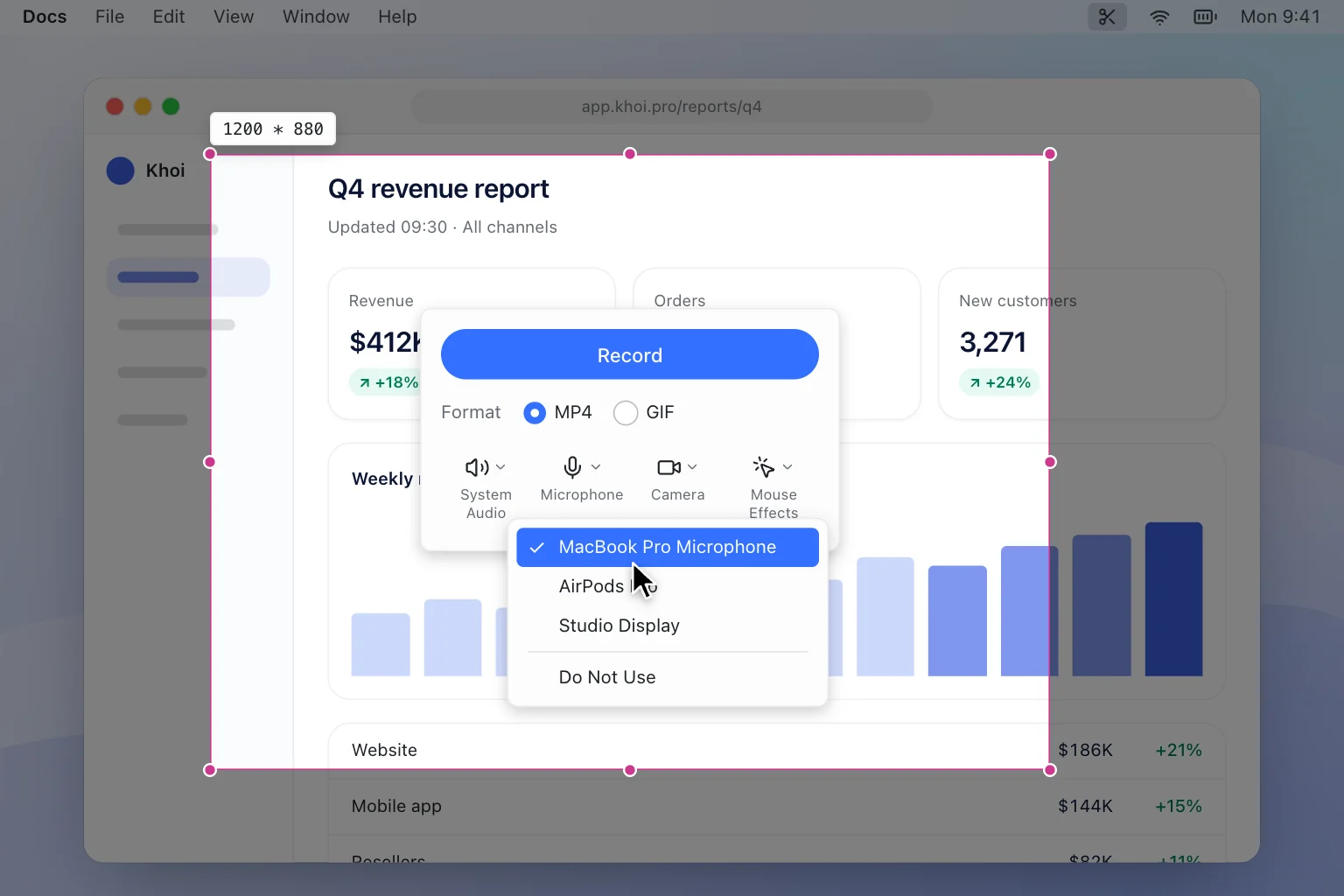
Toggle your Mac's audio output and an independent microphone input separately, so you can record either, both, or neither.
Camera overlay
Add your webcam as an overlay on top of the recording with a single toggle.
MP4, MOV, or GIF
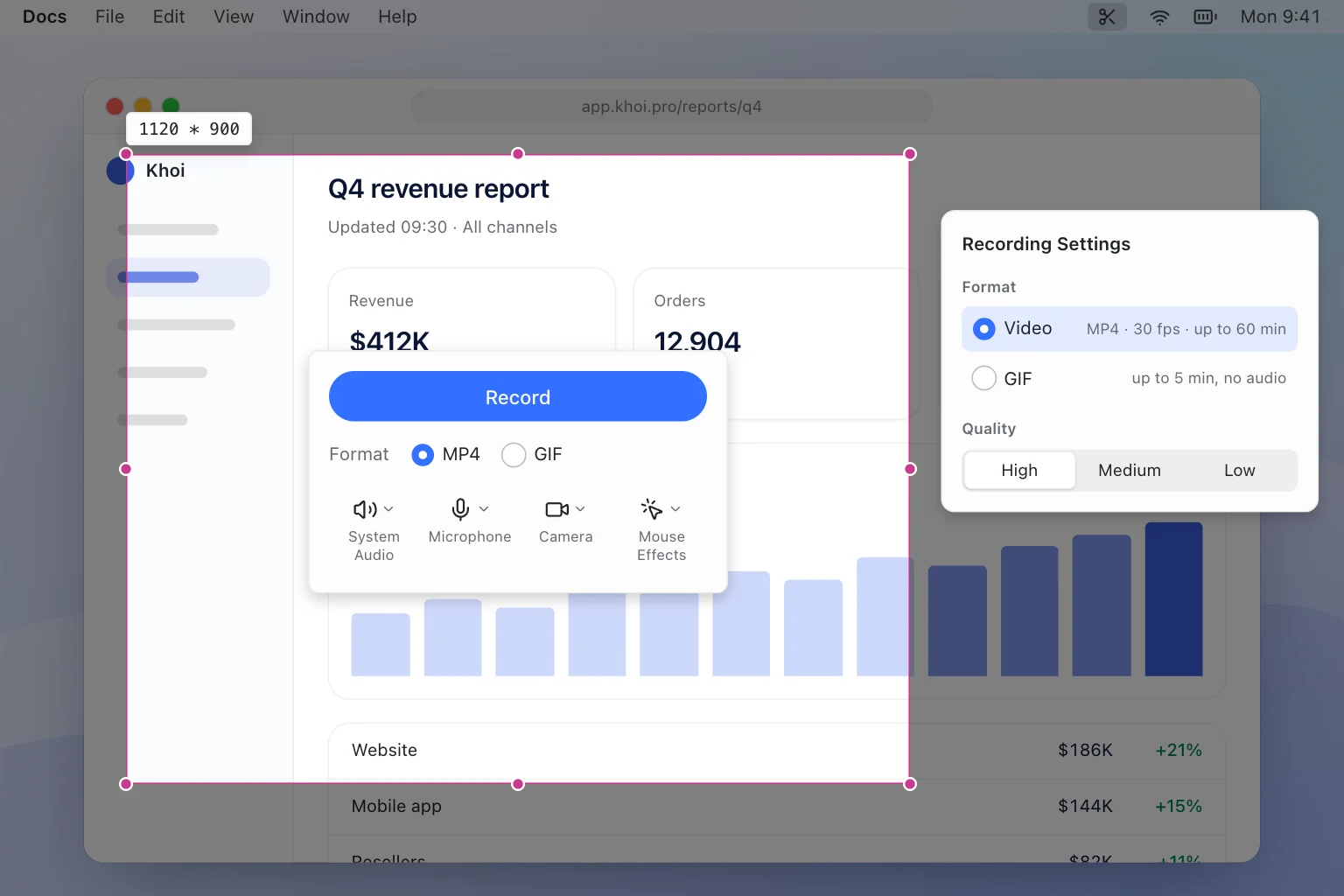
Record to video (MP4 by default, or MOV) or switch to GIF output mode — each with its own length limit.
Mouse highlight and keystrokes
Configurable highlight size, color, and animation around your cursor, plus an on-screen keystroke overlay for tutorials.
3-2-1 countdown
A short countdown gives you time to get ready before recording actually starts.
Edit right after recording
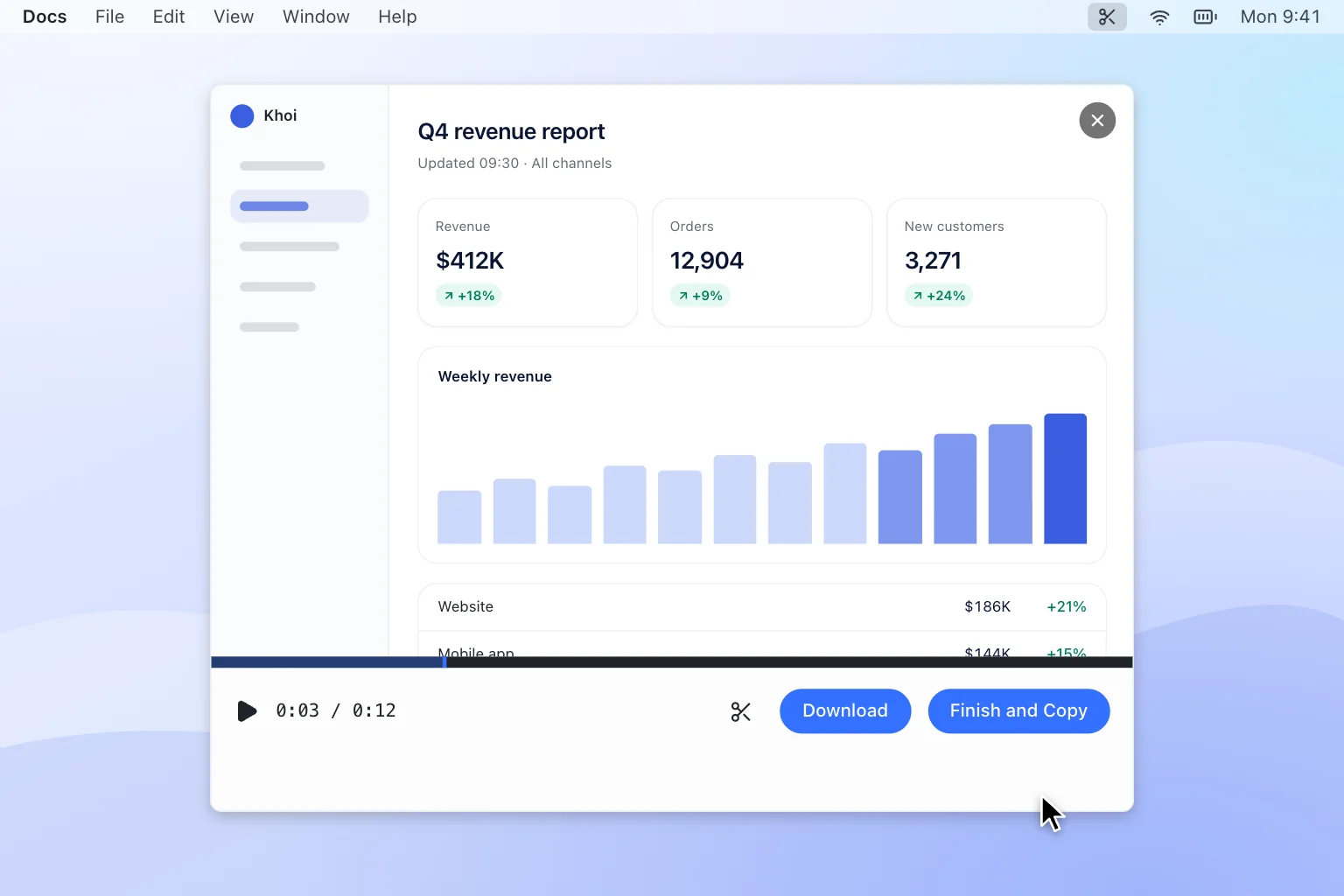
Edit, Download, Finish, or copy straight to the clipboard from the post-record panel.
How it works
Steps to do it
- 01
Press ⌥⇧R
Pick a window, an area, or the full screen to record.
- 02
Toggle audio and camera
Turn on system audio, microphone, or a camera overlay — any combination you want.
- 03
Wait for the countdown
A 3-2-1 countdown gives you a moment before recording begins.
- 04
Record
Mouse highlight and keystroke overlays run automatically if you've turned them on.
- 05
Stop and open the editor
Trim and review in the post-record panel, then Edit, Download, Finish, or copy to the clipboard.
Details
Go deeper
30 fps by default, two formats, two length limits
Video records at 30 fps to MP4 (default) or MOV, capped at 60 minutes. Switch to GIF mode for quick clips — GIFs are capped at 5 minutes to keep file sizes reasonable.
Audio is two separate toggles
System audio (what's playing on your Mac) and microphone input are independent settings, so a tutorial can include your voice without your music, or vice versa.
A real editor after you stop
The post-record panel lets you Edit, Download, or Finish the recording, or copy it straight to the clipboard — no separate video app required for basic trims.
Specs
Limits, formats and requirements
- Max MP4 length
- 60 minutes
- Max GIF length
- 5 minutes
- Frame rate
- 30 fps (default)
- Containers
- MP4 (default), MOV, or GIF
- Audio
- System audio + independent microphone
- Default shortcut
- ⌥⇧R
- Requires
- macOS 14+, Apple silicon
FAQ
Frequently asked questions
Related
Related features
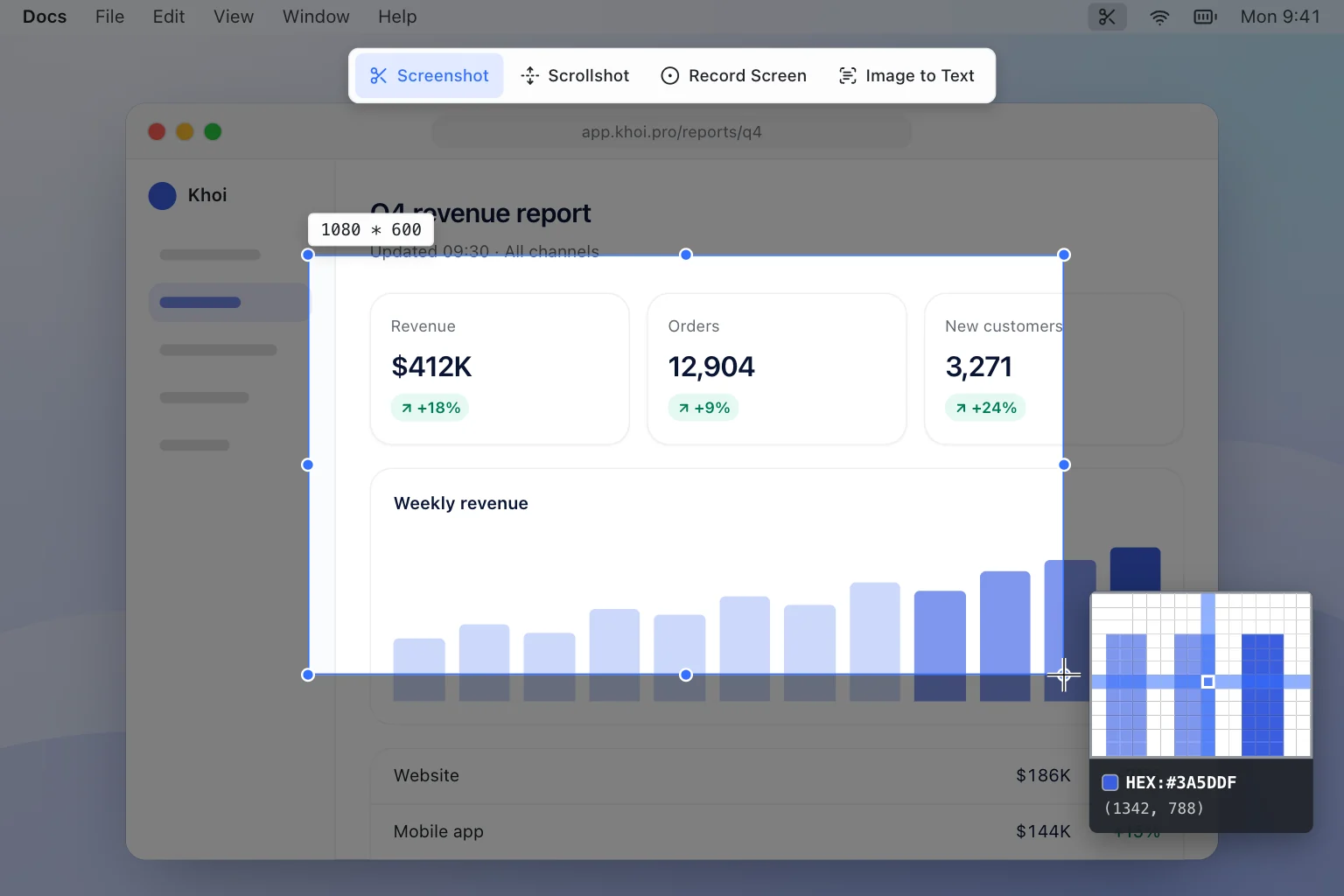
Screenshot
Area, window or UI element, all from ⌘⇧A
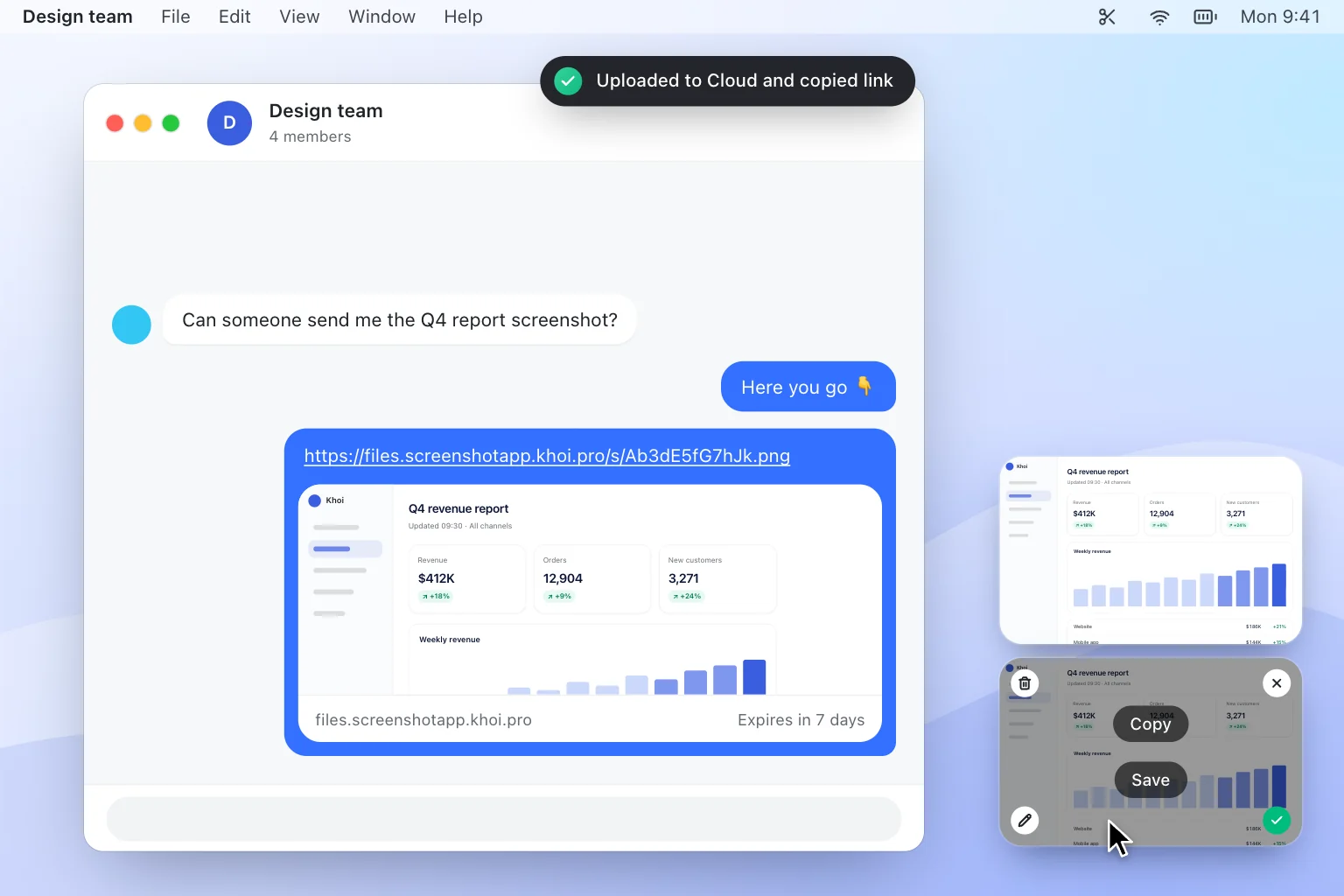
Cloud upload
Upload and copy a link instantly, expires in 1–30 days
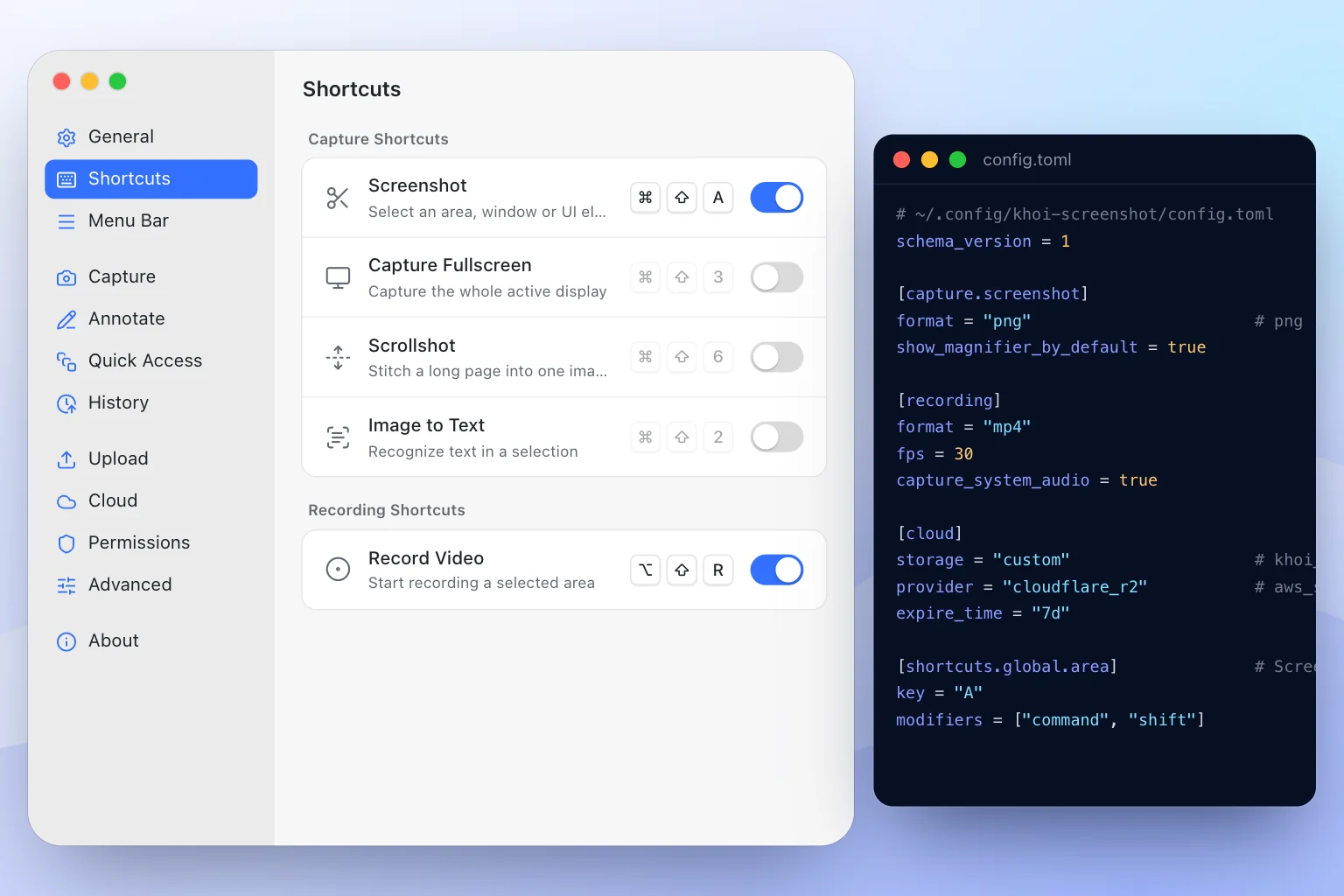
For power users
config.toml, deep links and shortcuts you control
Read more
Related posts
How to Screen Record on Mac With Audio
Record your Mac's screen with microphone or system audio: the built-in Screenshot app, QuickTime Player, real audio limits, and a one-shortcut alternative.
Mac Screenshot Shortcuts: The Complete Cheat Sheet
Every built-in Mac screenshot and screen recording shortcut, how to customize them in System Settings, and Screenshot K's defaults and in-overlay keys.
Ready to try Screenshot K?
Install in a minute, no account needed. Runs on macOS 14+, Apple silicon.
Version 1.3.0 · 45.1 MB