Pin to screen
Keep a screenshot floating above everything else
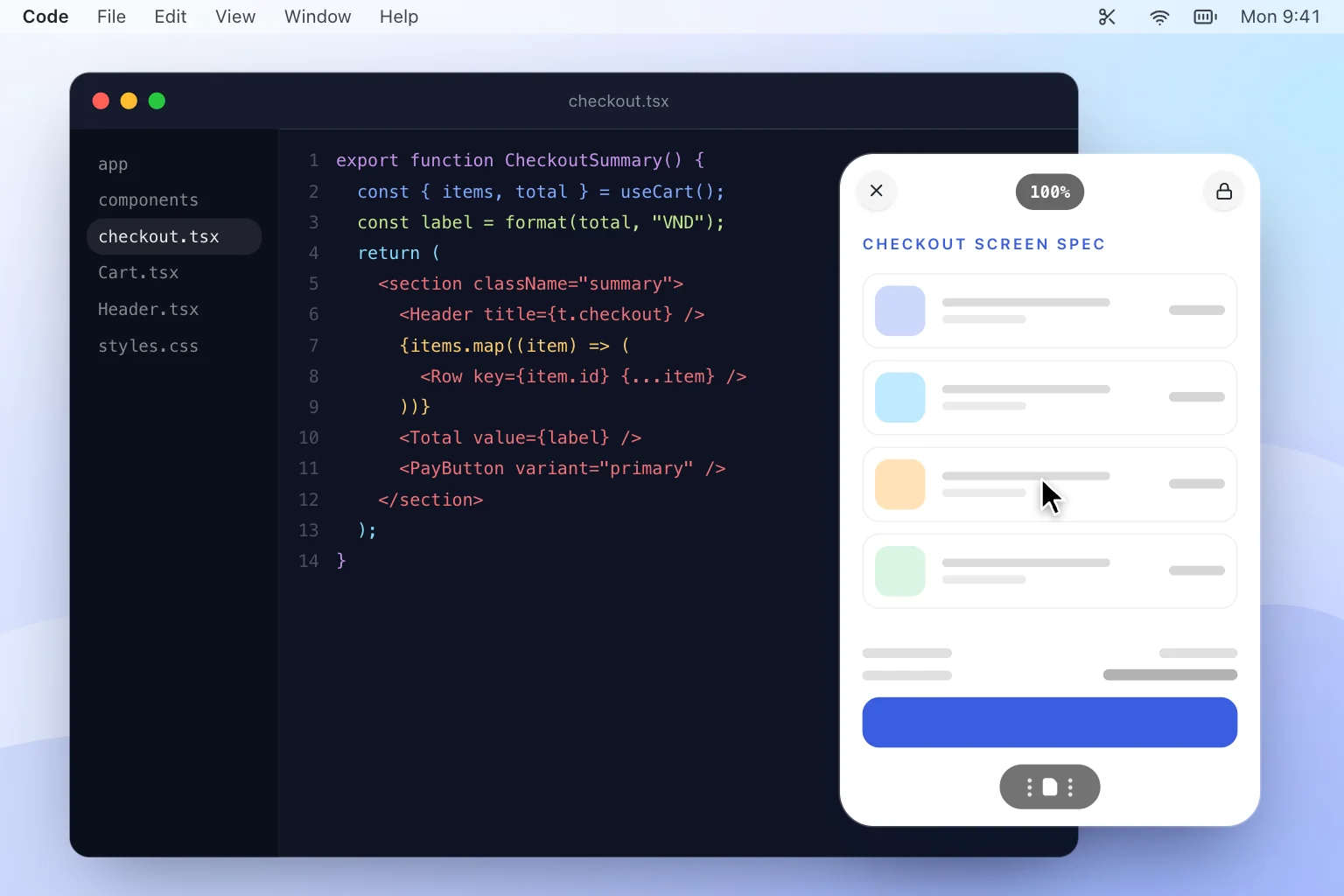
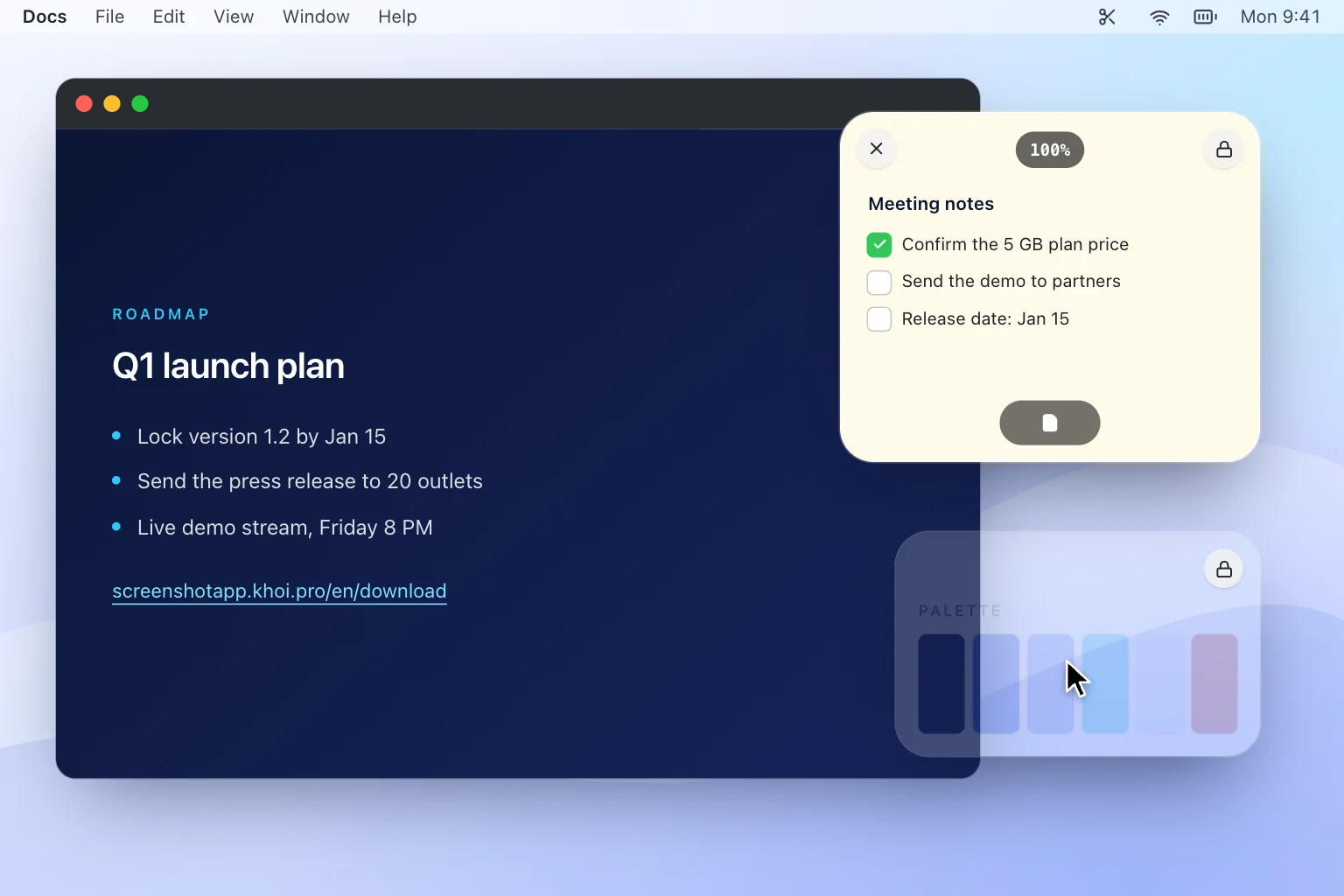
Pin a capture and it stays on top of every other window — perfect for copying numbers from a spreadsheet, matching a design, or keeping notes visible while you work in something else.
Highlights
Why this feature
Always on top
A pinned capture floats above every other window until you dismiss it.
Right-click menu
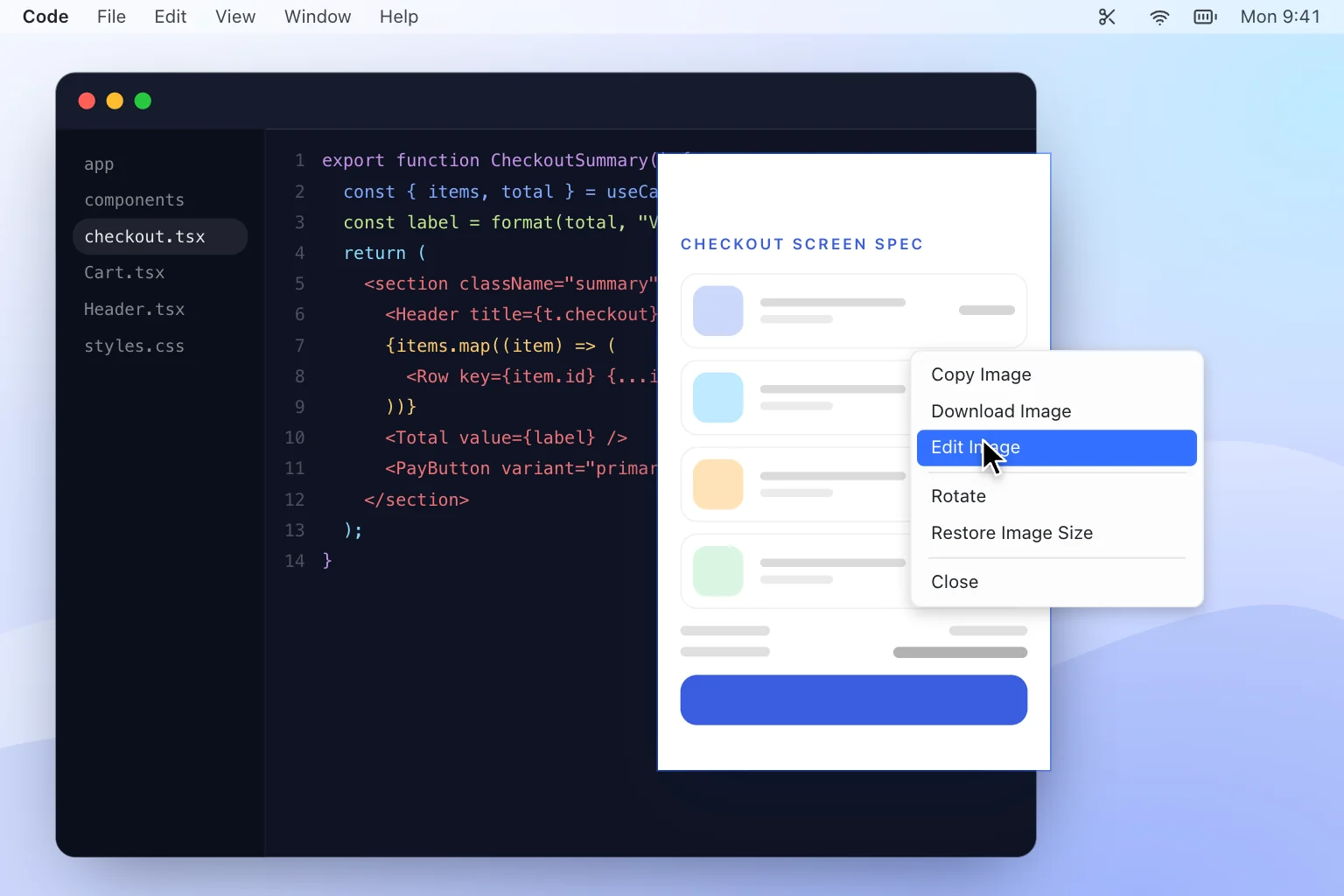
Copy Image, Download Image, Edit Image, Rotate, or Restore Image Size — all from a right-click.
Rotate and resize
Turn a pinned image or bring it back to its original size without re-capturing.
Great for side-by-side reference
Keep a design, a spec, or a set of numbers visible while you work in another app.
How it works
Steps to do it
- 01
Capture an area
Select the part of the screen you want to keep visible.
- 02
Choose Pin to screen
Pick it from the quick toolbar after capturing, or a deep link you've set up.
- 03
Work with it floating
The capture stays on top of every window while you work in another app.
- 04
Right-click for more
Copy Image, Download Image, Edit Image, Rotate, or Restore Image Size.
- 05
Dismiss when done
Close the pinned window once you no longer need it visible.
Details
Go deeper
A floating reference window
Pinning turns a capture into a small floating window that stays above everything else on screen — useful for copying from a reference image, matching a design pixel-for-pixel, or keeping notes visible during a call.
Full right-click menu
A pinned screenshot isn't static: right-click it for Copy Image, Download Image, Edit Image (send it to Annotate), Rotate, and Restore Image Size.
Specs
Limits, formats and requirements
- Right-click actions
- Copy Image, Download Image, Edit Image, Rotate, Restore Image Size
- Behavior
- Floats above every window until dismissed
- Requires
- macOS 14+, Apple silicon
- Permission needed
- Screen Recording
FAQ
Frequently asked questions
Related
Related features

Screenshot
Area, window or UI element, all from ⌘⇧A
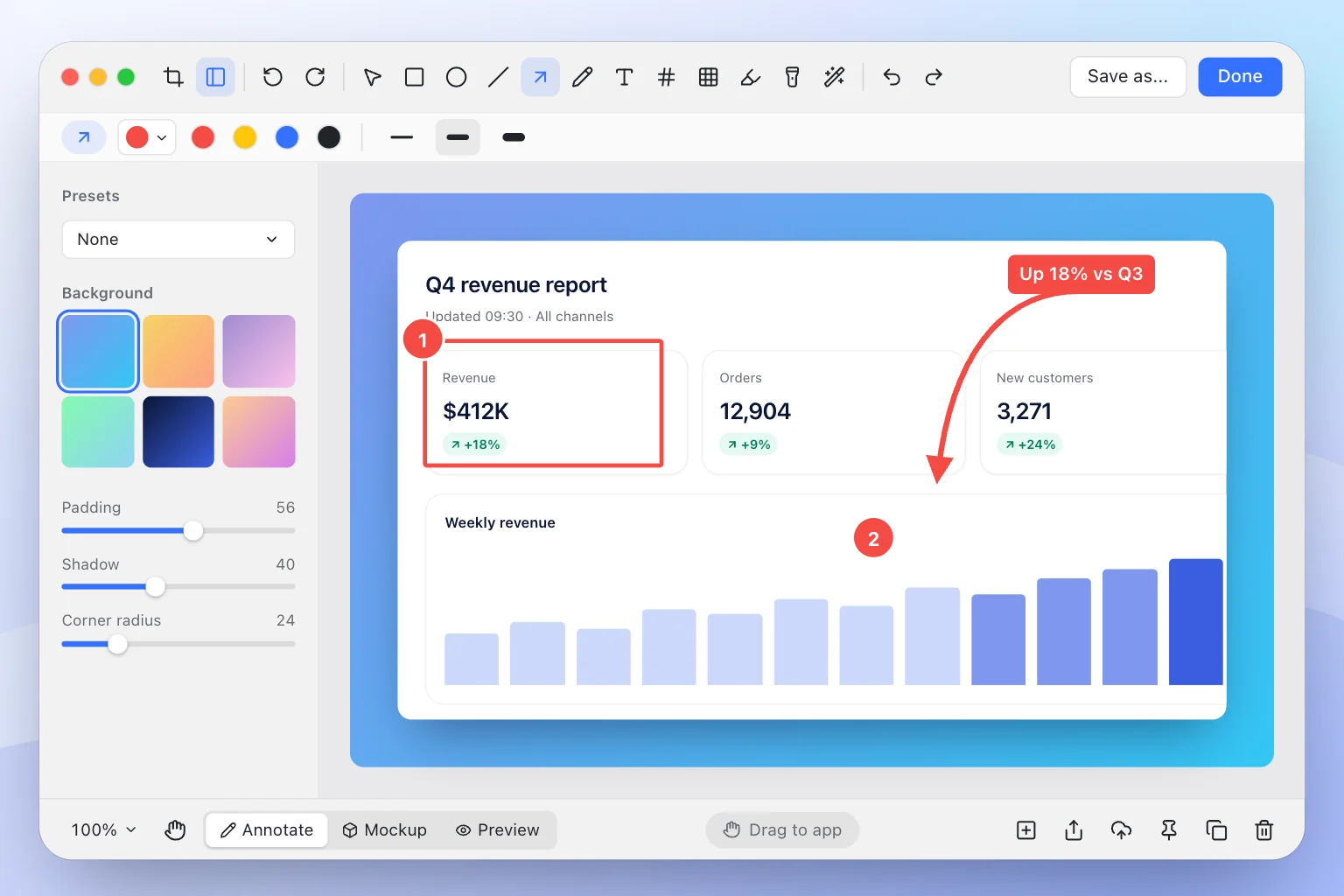
Annotate
Arrows, shapes, text and mosaic right under the selection
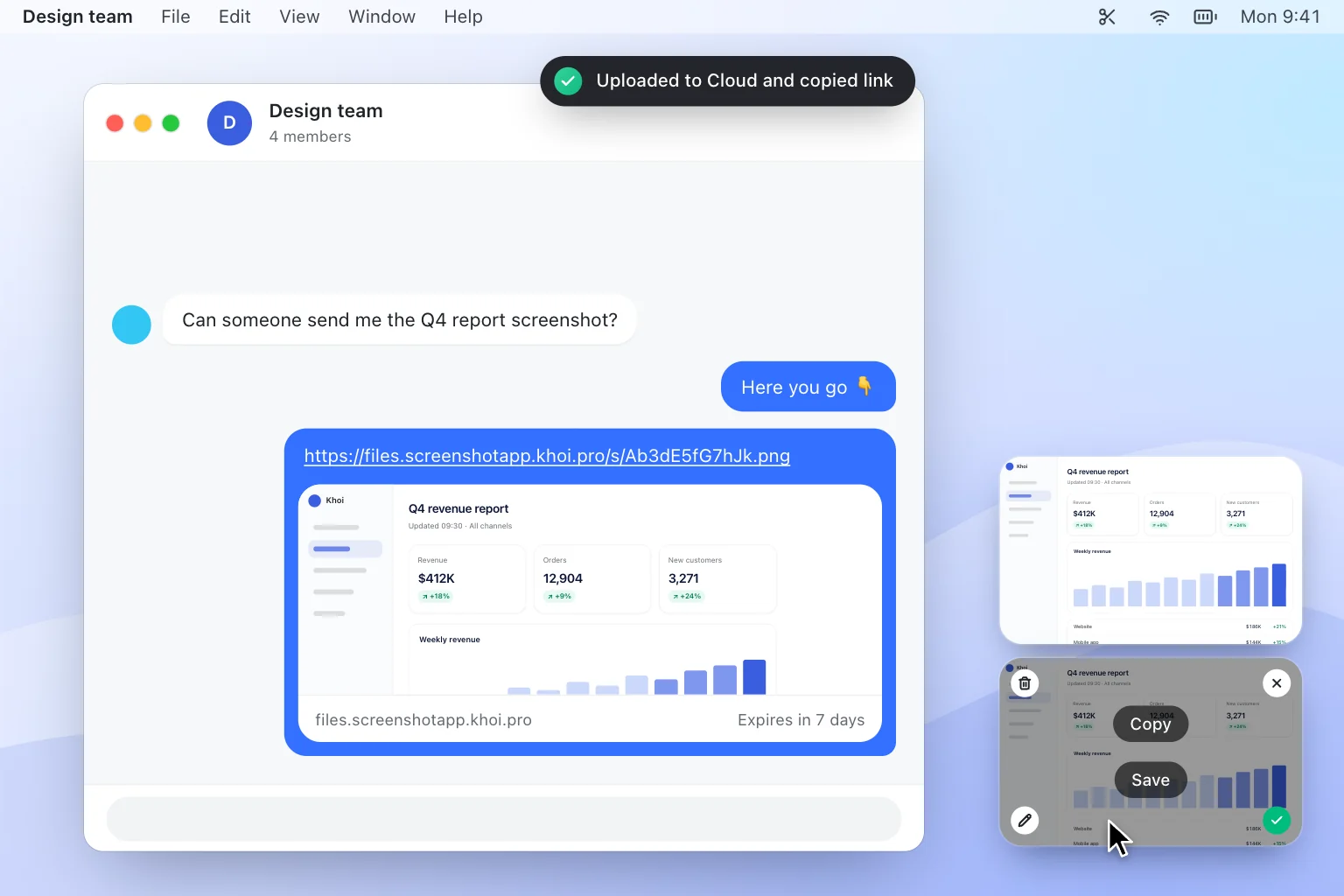
Cloud upload
Upload and copy a link instantly, expires in 1–30 days
Read more
Related posts
How to Screenshot on Mac: Every Method, Shortcut, and Format
The complete guide to taking a screenshot on Mac: every keyboard shortcut, the Screenshot app, clipboard vs. file, Markup, and when to use a dedicated app.

Mac Screenshot Shortcuts: The Complete Cheat Sheet
Every built-in Mac screenshot and screen recording shortcut, how to customize them in System Settings, and Screenshot K's defaults and in-overlay keys.
Ready to try Screenshot K?
Install in a minute, no account needed. Runs on macOS 14+, Apple silicon.
Version 1.3.0 · 45.1 MB